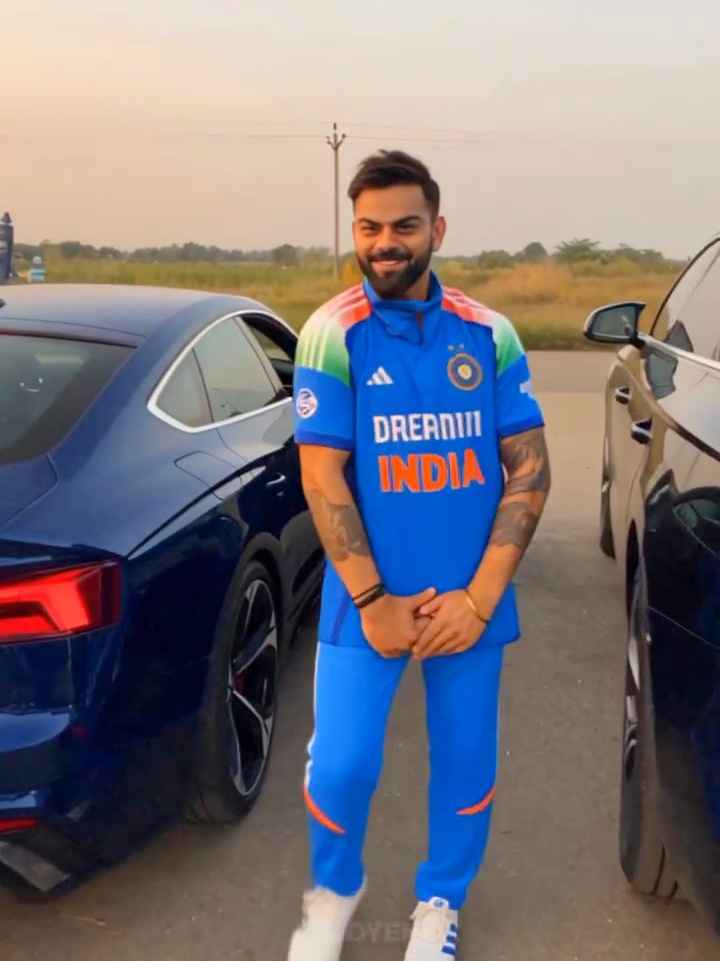
If you have seen those cinematic car reels on Instagram where a person poses next to a luxury car like a movie hero, and the face looks exactly like the real person, you are looking at an AI video prompt in action. This trend is growing fast, and one of the best ways to create it is with a scene by scene prompt structure combined with a face lock instruction.
In this article, I am sharing a complete AI car video prompt that you can copy, paste, and use with your own photo and car photo. I will also explain how the face lock prompt works, why scenes must be pasted one by one, and how you can extend this prompt to build a full cinematic sequence.
An AI car video prompt is a written instruction that you give to an AI video tool so it can generate a short cinematic video of a person with a car. It usually includes details about the person’s face, the car, the location, the camera angle, and the mood of the scene.
The reason this format has become popular is simple. People want to see themselves in a luxury car setting, styled like a movie shot, without actually owning that exact scene in real life. A good prompt gives the AI tool clear direction so the final video looks realistic instead of random or distorted.
Why the Face Lock Prompt Is Important
Most AI video generations struggle with one thing, and that is keeping the same face across multiple scenes. If you generate scene one and scene two separately, the AI can slightly change your face shape, skin tone, or expression without a proper lock instruction.
This is why a face lock prompt is placed before every scene. It tells the AI tool to treat your uploaded photo as the only identity reference and to avoid beautifying or altering your facial features. This one instruction is what keeps your face consistent from the first scene to the last.
How to Use This Prompt the Right Way
Follow this order every time you generate a video with this prompt.
Step 1: Copy the face lock prompt and paste it first.
Step 2: Copy the scene prompt (start with three scenes at a time) and paste it right after the face lock prompt.
Step 3: Generate the video for those scenes.
Step 4: For the next set of scenes, repeat the same process. Paste the face lock prompt again, then paste the next scene prompt.
Step 5: At the end of every generation, add the ending prompt. This line should be added every single time you generate a video, not just once.
This order matters because AI tools read prompts as one instruction block. If you paste scenes without the face lock line, the tool has no strong reference for your identity, and the result can look different from your actual photo.
Full Face Lock Prompt (Copy This First)
Paste this before every scene prompt, without changing it.
“Use my uploaded photo as the only identity reference. Preserve my face 100% exactly: same facial structure, skin tone, hairstyle, eyebrows, beard, lips, nose, eyes, expression, and body proportions. Do not change or beautify my face. Maintain perfect facial consistency across all scenes.”
Scene by Scene Prompt Breakdown
Here is the scene structure shared for this car video. You can copy each scene individually and paste it after the face lock prompt.
Scene 1: Hero Entry (5 seconds)
“Use my uploaded face image and my uploaded white BMW as reference. Keep my face, hairstyle, beard, skin tone, body proportions, and the BMW exactly the same. A quiet luxury street at night with warm street lights and large trees. My white BMW is parked facing the camera. I walk slowly toward the front of the BMW wearing an all-black outfit, white sneakers, and dark sunglasses. I stop beside the front bumper with both hands in my pockets and look down confidently. The camera slowly pushes in from a low angle with subtle handheld movement. Strong cinematic bokeh, realistic reflections on the BMW, Sony FX3, 85mm lens, 24fps, premium luxury automotive commercial.”
This scene sets up the mood of the whole video. The night setting, warm lights, and low camera angle are what give it that premium car commercial feel. The all-black outfit and confident pose also add to the hero style entry.
Scene 2: Bonnet Pose
The second scene continues from the same location and outfit. It keeps the same face and car reference as scene one, and moves the pose forward, usually with the person leaning or sitting on the bonnet while the camera shifts angle to capture a different part of the car and a new expression. When you write or complete this scene, keep three things fixed: the same face reference, the same car reference, and the same lighting style as scene one, so the video feels like one continuous shoot rather than separate clips.
If you are building your own version of scene two, describe the exact pose, the camera position, the lens type, and the frame rate, the same way scene one is written. This keeps every scene in the same visual language.
Ending Prompt (Use This Every Time)
Add this line at the end of every video you generate, no matter how many times you generate it.
“Ultra realistic, natural human motion, realistic facial expressions, no AI look, no face distortion, no identity change, no extra fingers, no flickering, no cartoon style.”
This line acts like a quality filter. It pushes the AI tool away from common problems like extra fingers, flickering movement, or a face that looks artificial.
Tips to Get a More Realistic Result
Use a clear, well lit photo of your face as the reference image. A blurry or dark photo gives the AI less detail to work with.
Use a clean photo of your car from a similar angle to what you want in the final video. This helps the AI match reflections and body lines correctly.
Keep your outfit description specific in every scene, including color and type of clothing, so it does not change between scenes.
Generate one set of scenes at a time instead of pasting the entire script together. This gives the AI tool a smaller and more accurate task to complete.
Always end with the ending prompt, even if you feel the result already looks good. It reduces the chance of small errors like flickering or distorted fingers.
Common Mistakes to Avoid
Skipping the face lock prompt before a scene. This is the most common reason the face looks different between scenes.
Changing the wording of the face lock prompt. Small changes can weaken how strictly the AI follows the instruction.
Uploading a car photo that does not match the lighting or angle described in the scene. This can create unrealistic reflections.
Forgetting to add the ending prompt on later generations after using it once. The ending prompt needs to be added every time, not only for the first video.
Writing scenes with vague poses like “look cool” instead of describing the exact position of hands, body, and camera angle. AI tools follow specific instructions far better than general ones.
FAQ
Can I use this prompt with any car, not just a BMW? Yes. Replace the car description in each scene with your own car’s color, model, and details. The face lock prompt and structure stay the same.
Do I need to paste the face lock prompt only once for the whole video? No. Paste it before every scene prompt you generate, because each generation is treated as a separate request by the AI tool.
Why does my face still look slightly different between scenes? This usually happens when the reference photo is low quality, or when the face lock prompt is edited or shortened. Use a clear photo and keep the prompt text exactly as given.
How many scenes should I generate at once? It is better to generate a small set, such as three scenes at a time, rather than pasting a long script in one go. This keeps the output more consistent.
What is the purpose of the ending prompt? It reduces common AI video issues such as unnatural motion, distorted faces, and extra fingers, making the final clip look more realistic.
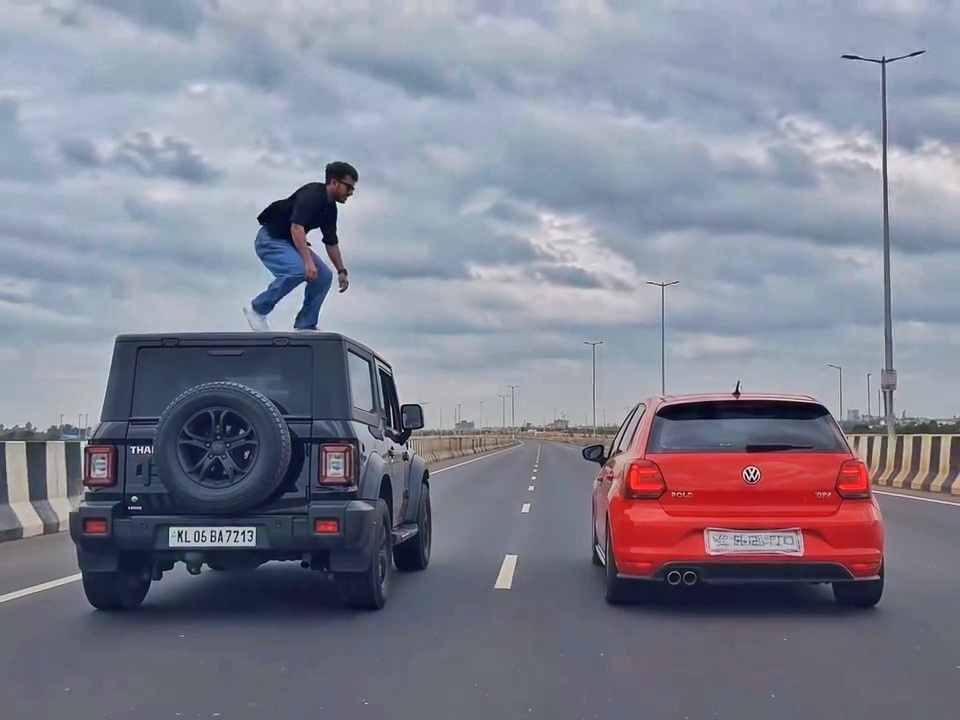
A rear-view, wide-angle cinematic shot on a wide highway under an overcast sky. A black SUV driving on the left lane and a red hatchback driving parallel on the right lane at medium speed. A young man emerges from the roof of the black SUV, stands up, and performs a dramatic acrobatic backflip through the air across the gap between the vehicles, successfully landing on top of the roof of the red h
Create a 10-second photorealistic cinematic video using the 2 uploaded reference images. Reference Image 1 = MAN and Reference Image 2 = WOMAN. Preserve both faces, identities, facial features, and hair exactly from the references. Create a scene inside an abandoned snow-covered mountain cabin. The man wears a beige beanie and petrol-blue winter parka and is crying while aiming a handgun at the wo
Use the uploaded reference video as the PRIMARY visual and motion reference. Recreate the video as closely as possible to the reference video, matching its exact shot structure, timing, pacing, camera movement, framing, subject movement, gestures, facial expressions, environment, lighting, transitions, motion blur and overall cinematic style. Do not reinterpret the sequence or create a different c
Cinematic ultra-realistic 16:9 video, 4K quality, real natural textures, rich built-in color grading, no scene cuts, continuous flow. Shots 1-3 are bright sunny daylight; during the 2-second pause in Shot 4 the sky slowly turns into a magical starry night. From Shot 5 onward everything moves in graceful SLOW MOTION. IDENTITY LOCK: the main person must be exactly the person in the uploaded referenc
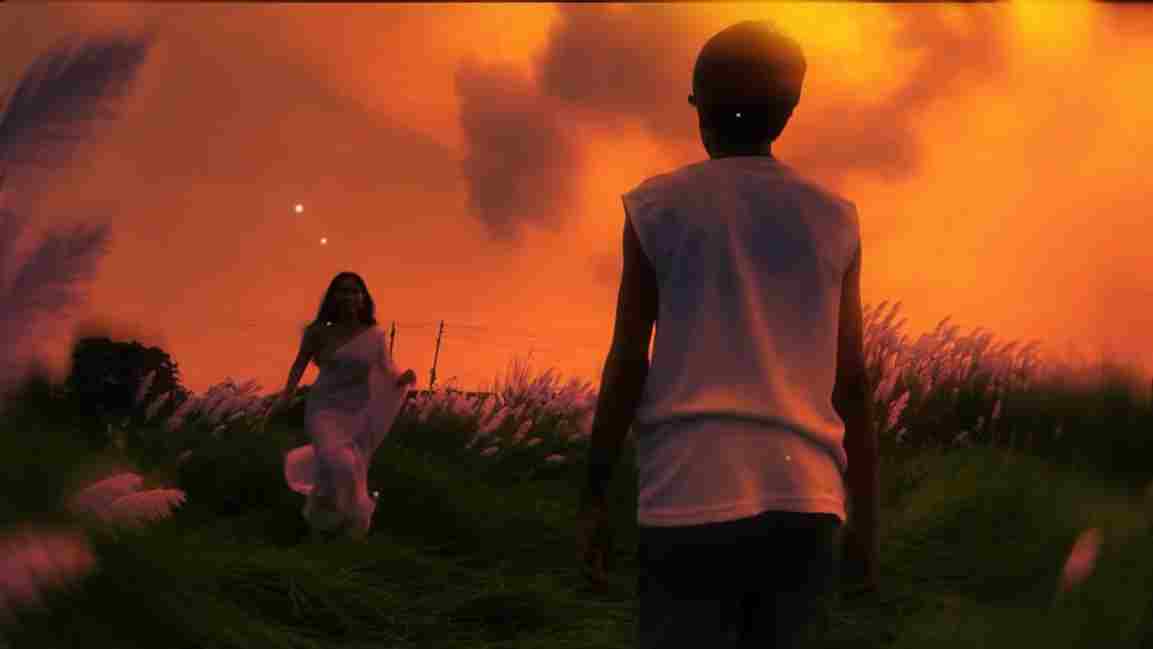
Use the uploaded photo as the exact base and preserve everything already present without any changes, including my face, facial features, hair, body shape, clothes, pose, skin tone, objects, background, lighting, colors, camera angle, perspective, depth, and composition. Add only one realistic adult Indian woman wearing a simple, elegant saree, naturally running toward me from the front. Match her
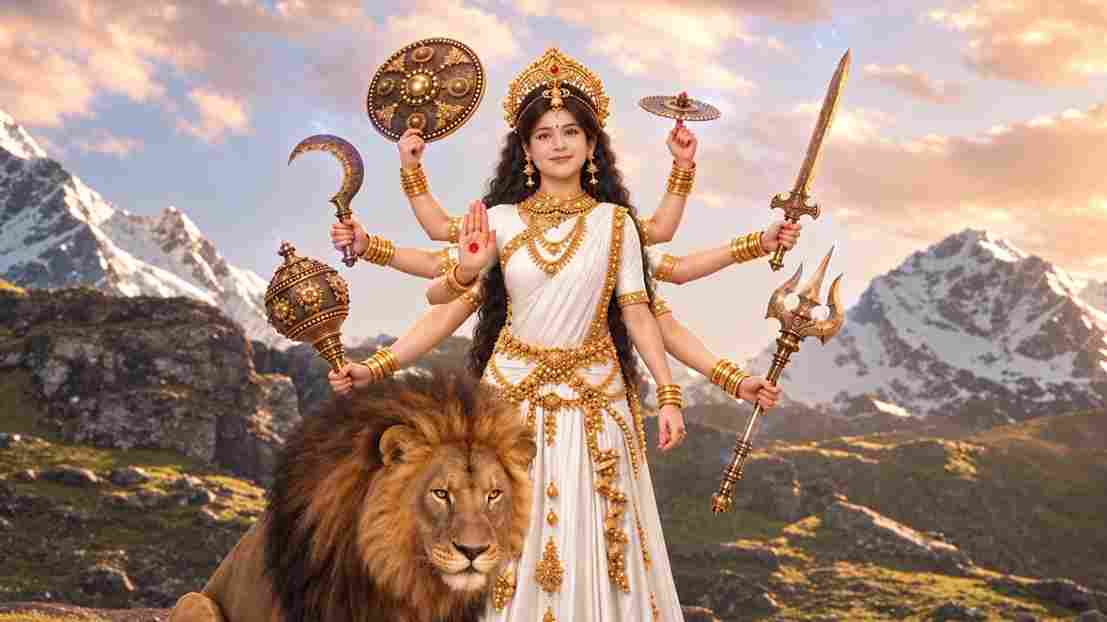
A hyper-realistic, cinematic 8k portrait of a serene Indian goddess sitting on a mossy granite cliff ledge in the Himalayas, framed by snow-capped mountain peaks and a distant cascading waterfall in the mist. She is dressed in an opulent white silk saree featuring intricate gold zari borders and a matching fitted crop blouse with crossed gold body chains. She wears heavy royal temple jewelry: an e
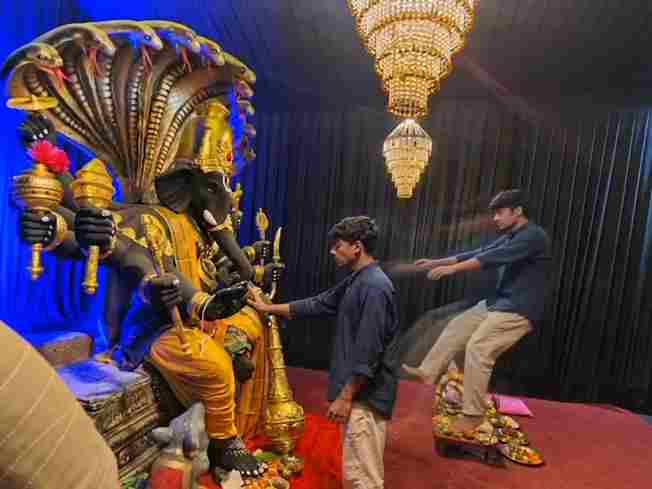
Create a near-square devotional VFX fantasy video inside a richly decorated Ganesh pandal hall. A young barefoot devotee with curly dark hair, light stubble, a dark navy button-up kurta-shirt, and beige trousers stands before a colossal graphite-black Ganesha murti seated in lalitasana on a carved throne. Ganesha wears a golden jeweled crown, white tusks, a left-curving trunk, multiple arms holdin
Swap the face of the lead male character in the source video with my face, using Image 1 as the identity reference. The attached collage shows me from several angles — use every angle to lock in an accurate likeness. Match my facial structure precisely: proportions, eye shape, nose, lips, jawline, and skin tone, along with any unique facial markers. My identity must stay stable and clearly recogni