VIP Boss Walk | Luxury Mall Bodyguard Cinematic AI Video | Flow AI
By Prompt Scene ·
AI video generation has become a fun and creative way to turn simple ideas into cinematic scenes.
One of the most popular concepts is the VIP boss walk, where a stylish character walks through a luxury location surrounded by professional-looking bodyguards.
A cinematic ultra-realistic 8K video (9:16) of a young man wearing baggy relaxed-fit blue denim jeans, a plain white t-shirt, and black Nike sneakers, walking confidently through a large modern shopping mall surrounded by a group of six bodyguard-style entourage members, all dressed in matching black kurta-pajama traditional outfits with black formal shoes, some wearing black sunglasses, moving together as a tight protective formation around him, natural bright indoor mall lighting, rich full vibrant color grading throughout — realistic natural colors, not faded, not black and white, not desaturated. A small, subtle watermark reading 'NoorEditing07' stays fixed in the bottom corner throughout the entire video, minimal white or light-colored font, low opacity, appearing only once at all times.

CRITICAL: use the uploaded reference photo as the exact identity source for the main person — same face, same exact facial features, same natural smooth clear skin with absolutely no blemishes, marks, or texture flaws, and the exact same body type and build as shown in the uploaded photo, maintained precisely and identically in every single scene with zero facial drift or identity change. This must work accurately for any person of any age or body type who uploads their own reference photo — the generated face, skin, and body must always match the uploaded photo exactly, never a generic or different look.

Scene 1 (Low-angle wide shot, elevated curved walkway): He walks across a high curved walkway with white railings and an arched roof structure overhead, his black-clad entourage walking closely in a line ahead of and beside him, camera positioned low looking upward, dramatic architectural framing.

Scene 2 (Wide tracking shot, bright food-court corridor): He walks through a wide mall corridor with glowing neon shop signage, his entourage forming a loose protective formation around him, bustling background crowd, natural energetic mall atmosphere.

Scene 3 (Close group shot, tight formation): He walks at the center of his entourage in a tighter huddle, sunglasses on, calm confident expression, his bodyguards' shoulders and backs framing him closely on both sides, intense VIP energy.

Scene 4 (Wide shot from below, ascending atrium staircase): He and his entourage climb a curved mall staircase together, shot from a low angle looking up at the group, glowing mall signage and advertisement boards visible beside the stairs.

Scene 5 (High wide shot, multi-level atrium overlook): He and his entourage walk together across an open atrium level with glass railings, escalators and lower mall floors visible below, crowds of shoppers in the background, confident synchronized group walk.

Scene 6 (Wide shot from below, descending staircase): He and his entourage walk down a different mall staircase together, his white t-shirt standing out clearly among the black-clad group, bright storefronts and signage framing the stairs.

Scene 7 (Medium front tracking shot, final corridor): He walks directly toward the camera at the center of his entourage, calm composed expression, his group flanking him closely, mall crowd and shopfronts blurred in the background, cinematic slow zoom-out to finish.

Overall style: same face, same identity, same natural smooth skin, same exact body type as the uploaded reference photo for the main person, same baggy blue denim jeans, white t-shirt, and black Nike sneakers outfit consistent in every single scene, no outfit change, no identity or body change, same matching black kurta-pajama outfits for all entourage members present in every single scene, same real modern shopping mall location throughout with distinct architectural areas — elevated walkway, corridor, tight group formation, ascending staircase, atrium overlook, descending staircase, final corridor — natural realistic group walking movement with varied cinematic poses and genuinely distinct camera angles in every scene, realistic skin and fabric texture, rich full vibrant natural cinematic color grading with bright indoor mall lighting — full natural color throughout, not faded or desaturated — filmic depth and contrast, smooth cinematic transitions between poses, ultra-realistic premium 8K quality, vertical 9:16 format, continuous confident story flow from start to end, no scene skipped, only 7 scenes total exactly as described.

Watermark (final instruction): keep a single small, subtle, clean text watermark reading 'NoorEditing07' fixed in the same bottom corner position throughout the entire video, minimal white or light-colored font, low opacity, non-intrusive, appearing only once on screen at any given time.
In this guide, you will learn how to create a Luxury Mall Bodyguard Cinematic AI Video using Flow AI. The process is simple, even if you have never created an AI video before.
You can use the video prompt given below, copy it, paste it into Flow AI, and generate your own cinematic VIP-style video.
What Is a VIP Boss Walk AI Video?
A VIP boss walk video shows a confident main character walking through an impressive location while bodyguards walk around or behind them.
For this concept, the setting is a luxury shopping mall with premium interiors, bright architectural lighting, polished floors, designer stores, and a cinematic atmosphere.
The main character is the focus of the scene. The bodyguards create a powerful security-team appearance, while the camera movement makes the video feel similar to a high-budget movie sequence.
With AI video tools such as Flow AI, you can create this type of scene without a professional camera, actors, expensive locations, or a large production team.
Why This AI Video Concept Is Popular
The VIP walking concept works well because it combines several visually attractive elements in one scene.
The luxury mall provides a premium background, while the bodyguards add a dramatic atmosphere. A slow cinematic camera movement can make the main character look confident and important.
This style can also be useful for:
Instagram Reels
YouTube Shorts
TikTok-style videos
AI video experiments
Social media posts
Cinematic edits
Personal creative projects
AI video tutorials
The most important part is writing a detailed prompt so that the AI understands the character, location, camera movement, lighting, and overall mood.
VIP Boss Walk AI Video Prompt
Below is a ready-to-use prompt for creating the cinematic scene in Flow AI.
Copy the complete prompt below:
Create an ultra-realistic cinematic luxury mall scene featuring a confident VIP boss walking through a grand modern shopping mall surrounded by professional bodyguards. The main character walks naturally toward the camera with a calm, powerful and confident expression. The character wears a premium dark formal outfit with a sophisticated luxury style.
Several professional bodyguards walk around the VIP in a coordinated formation, maintaining a realistic security-team appearance. They wear elegant black suits, white shirts, dark sunglasses and professional formal shoes. Their body language should look serious, alert and disciplined without appearing aggressive.
The location is a huge luxury shopping mall with premium marble flooring, modern glass architecture, elegant lighting, high-end storefronts and a sophisticated interior design. Shoppers can be seen naturally in the distant background, slightly out of focus, creating a realistic busy-mall atmosphere.
Use cinematic lighting with realistic reflections on the polished floor, soft highlights, natural shadows and a premium movie-like color grade. The scene should feel expensive, stylish and realistic.
Start with a wide cinematic shot showing the luxury mall environment and the entire group. Slowly move the camera backward as the VIP and bodyguards walk toward the camera. Then transition into a smooth medium tracking shot focused on the main character while keeping the bodyguards visible around them.
Use realistic human movement, natural walking speed, accurate body proportions, realistic facial expressions, detailed clothing textures, physically accurate lighting and smooth camera motion. Add subtle depth of field and realistic background motion.
The overall visual style should be cinematic, premium, photorealistic and similar to a high-budget movie sequence. Avoid exaggerated movements, distorted faces, extra limbs, duplicated people, unnatural walking, flickering objects, warped architecture, blurry faces or artificial-looking motion.
High detail, realistic skin texture, realistic fabric, realistic reflections, cinematic composition, professional camera movement, natural motion blur, shallow depth of field, premium luxury atmosphere, photorealistic 4K cinematic quality.
How to Create the Video in Flow AI
Creating the video is straightforward. Follow the steps below carefully.
Step 1: Prepare the Prompt
First, copy the complete VIP Boss Walk AI video prompt provided above.
Make sure you copy the entire prompt rather than only the first few lines. The additional details help the AI understand the environment, characters and camera movement.
If you want to create your own version later, you can also modify the clothing, mall design, lighting or camera movement.
Step 2: Open Flow AI
Open the Flow AI video creation platform and sign in to your account if required.
After entering the video creation interface, look for the option that allows you to create a new video or generate a scene from a text prompt.
The exact interface can change over time, so the names or positions of buttons may be slightly different.
Step 3: Start a New Video Project
Create a new video project.
Depending on the options available in your version of Flow AI, you may be able to select different video generation modes, aspect ratios or models.
For social media content, a vertical format is usually useful. For YouTube or website presentations, a widescreen format can work better.
Choose the format according to where you plan to publish the final video.
Step 4: Paste the AI Video Prompt
Now find the main prompt or text description box.
Paste the complete prompt into the box.
Do not add unnecessary instructions that could conflict with the original description. The prompt already explains the main character, bodyguards, mall environment, camera movement, lighting and visual quality.
Step 5: Add a Reference Image If Needed
If you want a specific character to appear in the video, you can use a suitable reference image if your Flow AI setup provides an image-to-video or reference-image feature.
A reference image can help maintain the appearance of a character across the generated scene.
For a completely AI-generated character, you can simply use the text prompt without adding an image.
If you use a person’s photograph, make sure you have permission to use it.
Step 6: Choose the Video Settings
Before generating the video, check the available settings.
For a cinematic VIP walk, pay particular attention to:
Aspect Ratio: Choose according to your publishing platform.
Duration: A short clip is usually easier to control and can be edited into a longer Reel or Short.
Quality: Select the highest practical quality available to you.
Camera Movement: Smooth tracking or cinematic movement works particularly well for this concept.
You do not need to make every setting complicated. The prompt itself contains detailed instructions for the visual style.
Step 7: Generate the Video
Once everything is ready, start the generation process.
AI video generation can take some time because the system needs to create multiple frames and maintain consistency between them.
When the generation is complete, watch the entire clip carefully.
Do not judge the result only from the first few seconds. Check the character movement, bodyguards, background, camera motion and overall consistency.
What to Check After Generation
AI-generated videos can sometimes contain small visual errors. Before using your final video, check the following elements.
1. Character Consistency
Make sure the main character maintains a consistent appearance throughout the clip.
The face, hairstyle, clothing and body proportions should remain stable.
2. Bodyguard Movement
The bodyguards should walk naturally and maintain their positions.
If a person suddenly changes appearance or the walking motion looks unnatural, generate another version.
3. Background Quality
Look at the mall architecture carefully.
Check for unusual storefronts, distorted signs, changing objects or strange architectural details.
4. Camera Movement
The camera should move smoothly.
A slow tracking movement generally creates a more cinematic feeling than a camera that moves too quickly.
5. Lighting
The lighting should remain reasonably consistent throughout the scene.
The polished floor, glass surfaces and mall lighting should look physically believable.
How to Make the Video More Cinematic
If your first generation looks good but you want a more premium result, you can improve the prompt with specific cinematic instructions.
For example, you can emphasize:
Smooth tracking camera
Natural walking motion
Shallow depth of field
Realistic reflections
Soft cinematic lighting
Subtle motion blur
High-detail clothing
Premium architectural background
Realistic crowd movement
Professional composition
However, avoid adding too many conflicting instructions. A clear and structured prompt usually works better than a very long list of unrelated effects.
Create Different VIP Boss Walk Variations
One advantage of AI video generation is that you can create multiple versions of the same concept.
Luxury Mall Version
Keep the original mall environment and focus on premium architecture, polished floors and luxury stores.
Hotel Lobby Version
Change the location to a five-star hotel lobby with large chandeliers, marble floors and elegant furniture.
Private Airport Version
Use a premium private airport terminal as the background, with the VIP walking toward a waiting vehicle or aircraft.
Modern Business District
Place the character in a sophisticated city business district surrounded by modern skyscrapers.
Red Carpet Version
Create a cinematic entrance where the VIP walks toward a red-carpet event with photographers and security personnel.
These variations can help you create a complete collection of cinematic AI videos around the same theme.
Tips for Better Flow AI Results
The quality of your final video depends heavily on how clearly the scene is described.
Keep the Main Character Clear
Tell the AI who the main subject is and what they are doing.
For example, describe the character as walking confidently toward the camera rather than simply saying “a VIP scene.”
Describe the Environment
Mention important visual details such as marble floors, glass architecture, luxury stores and premium lighting.
This gives the AI more information about the intended setting.
Explain Camera Movement
Camera instructions can make a major difference.
Instead of saying “cinematic camera,” describe the actual movement, such as a slow backward tracking shot or a smooth medium tracking shot.
Use Realistic Movement
AI videos can look unnatural when characters perform complicated actions.
Simple movements such as walking naturally are generally easier for the model to reproduce convincingly.
Generate Multiple Versions
Do not expect every generation to be perfect.
Create several versions and compare them. One generation may have better faces, another may have better camera movement, while another may produce a more realistic mall environment.
Choose the strongest result and edit it if necessary.
Editing the Final AI Video
After generating your video, you can use a video editing application to make the final result more polished.
You can trim unnecessary frames, add background music, adjust the timing and add simple transitions.
For short-form content, keeping the video focused on the main walking sequence can make it more engaging.
You can also add a short title at the beginning, such as:
VIP Boss Walk
or
Luxury Mall Bodyguard Entry
Keep the text simple so it does not cover the important visual elements.
Best Aspect Ratio for This Concept
The ideal aspect ratio depends on your publishing platform.
For Instagram Reels, YouTube Shorts and similar vertical platforms, 9:16 is generally the preferred format.
For YouTube videos and website content, 16:9 is a common choice.
If your goal is to create a cinematic social media Reel, vertical video can make the characters appear larger on a smartphone screen.
If the video is intended for a website article or YouTube, widescreen can provide more space for the luxury mall environment and bodyguard formation.
Final Thoughts
The VIP Boss Walk | Luxury Mall Bodyguard Cinematic AI Video concept is a simple but visually impressive AI video idea. The combination of a confident VIP character, professional bodyguards, luxury architecture and smooth cinematic camera movement creates a premium movie-style scene.
The biggest advantage is that you do not need a real luxury mall, professional camera equipment or a large production team. With a detailed prompt and Flow AI, you can experiment with different characters, locations, outfits and cinematic styles.
Start by copying the prompt from this article and pasting it into Flow AI. Generate a few variations, select the best result, and then make simple edits to create your final video.
Most importantly, experiment with the prompt. Small changes to the location, clothing, lighting and camera movement can produce completely different results.
With a little practice, you can create your own collection of cinematic VIP walk AI videos for social media, YouTube, blogs and other creative projects.
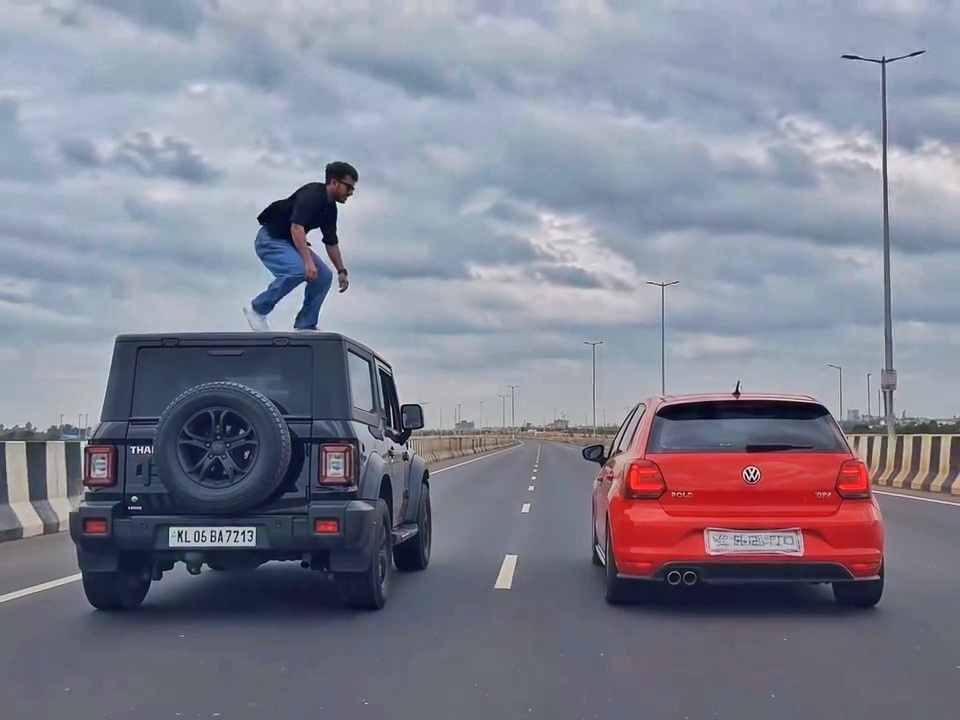
A rear-view, wide-angle cinematic shot on a wide highway under an overcast sky. A black SUV driving on the left lane and a red hatchback driving parallel on the right lane at medium speed. A young man emerges from the roof of the black SUV, stands up, and performs a dramatic acrobatic backflip through the air across the gap between the vehicles, successfully landing on top of the roof of the red h
Create a 10-second photorealistic cinematic video using the 2 uploaded reference images. Reference Image 1 = MAN and Reference Image 2 = WOMAN. Preserve both faces, identities, facial features, and hair exactly from the references. Create a scene inside an abandoned snow-covered mountain cabin. The man wears a beige beanie and petrol-blue winter parka and is crying while aiming a handgun at the wo
Use the uploaded reference video as the PRIMARY visual and motion reference. Recreate the video as closely as possible to the reference video, matching its exact shot structure, timing, pacing, camera movement, framing, subject movement, gestures, facial expressions, environment, lighting, transitions, motion blur and overall cinematic style. Do not reinterpret the sequence or create a different c
Cinematic ultra-realistic 16:9 video, 4K quality, real natural textures, rich built-in color grading, no scene cuts, continuous flow. Shots 1-3 are bright sunny daylight; during the 2-second pause in Shot 4 the sky slowly turns into a magical starry night. From Shot 5 onward everything moves in graceful SLOW MOTION. IDENTITY LOCK: the main person must be exactly the person in the uploaded referenc
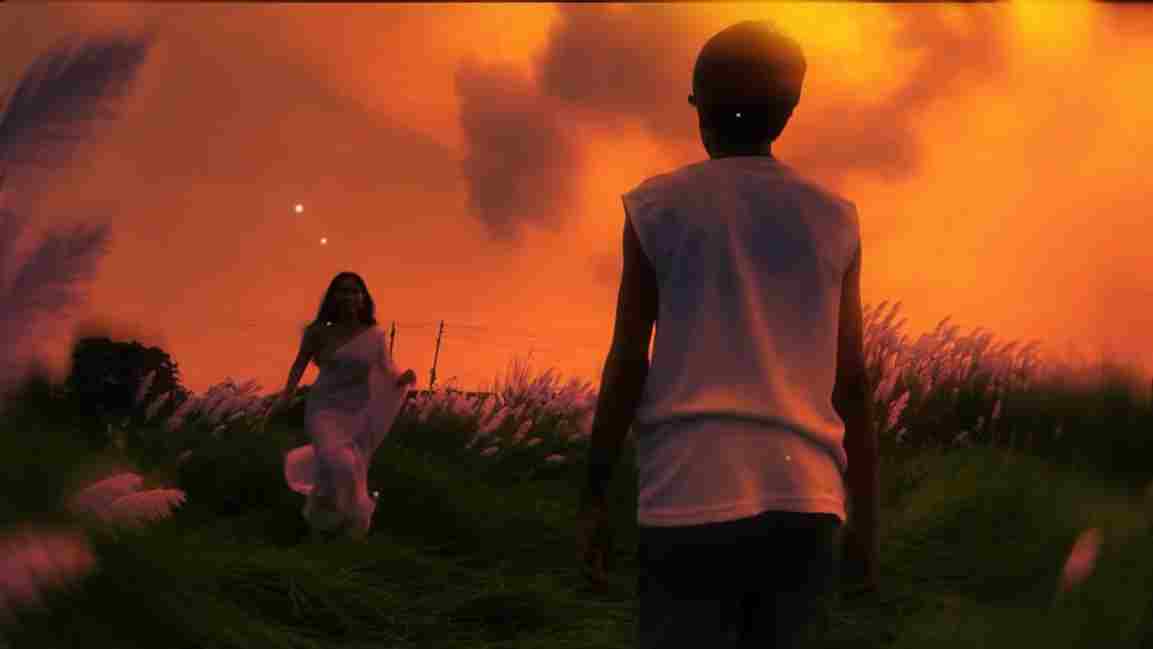
Use the uploaded photo as the exact base and preserve everything already present without any changes, including my face, facial features, hair, body shape, clothes, pose, skin tone, objects, background, lighting, colors, camera angle, perspective, depth, and composition. Add only one realistic adult Indian woman wearing a simple, elegant saree, naturally running toward me from the front. Match her
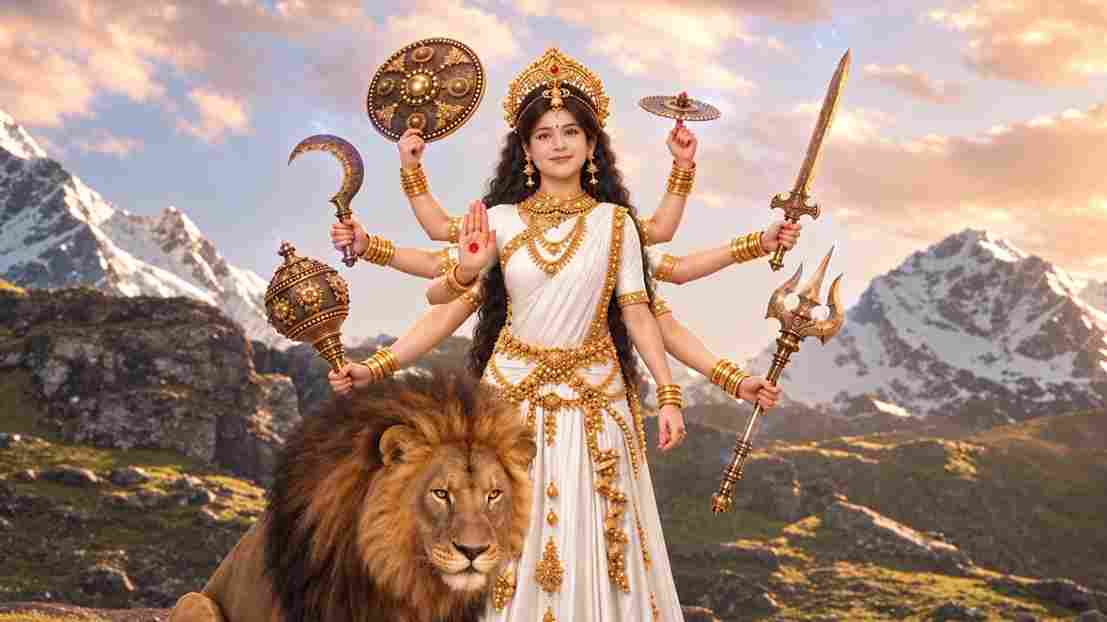
A hyper-realistic, cinematic 8k portrait of a serene Indian goddess sitting on a mossy granite cliff ledge in the Himalayas, framed by snow-capped mountain peaks and a distant cascading waterfall in the mist. She is dressed in an opulent white silk saree featuring intricate gold zari borders and a matching fitted crop blouse with crossed gold body chains. She wears heavy royal temple jewelry: an e
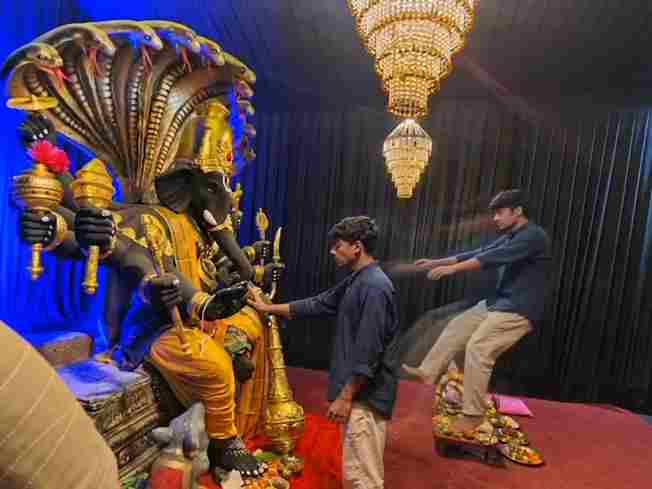
Create a near-square devotional VFX fantasy video inside a richly decorated Ganesh pandal hall. A young barefoot devotee with curly dark hair, light stubble, a dark navy button-up kurta-shirt, and beige trousers stands before a colossal graphite-black Ganesha murti seated in lalitasana on a carved throne. Ganesha wears a golden jeweled crown, white tusks, a left-curving trunk, multiple arms holdin
Swap the face of the lead male character in the source video with my face, using Image 1 as the identity reference. The attached collage shows me from several angles — use every angle to lock in an accurate likeness. Match my facial structure precisely: proportions, eye shape, nose, lips, jawline, and skin tone, along with any unique facial markers. My identity must stay stable and clearly recogni