Thalapati Vijay Trending Helicopter AI Video Editing Prompt
By Prompt Scene ·
AI video editing is becoming more creative every day. One of the latest styles people are experimenting with is the cinematic helicopter-entry and action-movie video effect.
It gives a normal portrait a powerful movie-like feel with dramatic camera movements, dust effects, helicopters, motorcycles, and cinematic locations.
Use the uploaded reference photo for the man's face, hairstyle, skin tone, body build and height. Keep identity exactly same as reference photo — no alteration to face, body, or hairstyle in any scene.

Keep the person's body proportions natural and realistic, matching the exact build shown in the reference photo.

Outfit: navy blue trousers and black sneakers during the helicopter exit; a black jacket/top over navy jogger pants, black sneakers, black sunglasses, and a black wristwatch for the middle scenes; by the dust-explosion scene, the jacket has been removed and is held in his hand, revealing a black t-shirt underneath, until it is thrown at the end.

Location (same throughout, do not change): a dramatic red-earth quarry terrain with layered rust-colored rock formations, a dark green helicopter with a visible tail rotor assembly, an old rustic iron gate with a decorative padlock and chain, a parked jeep with a side mirror and antenna, small eroded dirt-mound rock formations, a convoy of black motorcycles, dust effects in the air, bright natural daylight with a pale sky.

Color grade: cinematic warm-toned action-movie grade, rich reds and earthy browns, high contrast, sharp dramatic detail, consistent across all scenes.

Create exactly 17 cinematic scenes in this precise order:

Scene 1: Extreme close-up of the man's leg and black sneaker stepping down inside the helicopter's open door, navy trousers visible, his foot landing on the metal skid; he then peeks through the narrowly-opened door, gripping the door handle, sunglasses on, looking down and outward.

Scene 2: Close-up shot, the man looking up and to the side with a calm intense expression, black jacket visible, helicopter structure softly blurred behind him.

Scene 3: Wide shot, the man jogging away from the helicopter across the red terrain, the main rotor blade sweeping across the frame, red terraced quarry wall in the background.

Scene 4: Close-up detail shot of the helicopter's tail rotor and antenna assembly in sharp focus, with the man visible as a small blurred silhouette walking far in the deep background on the red terrain.

Scene 5: Close-up low-angle shot of the man's face, sunglasses on, calm expression, the helicopter's tail structure blurred at the top of the frame, open sky behind him.

Scene 6: Full body medium shot, the man walking confidently, touching his collar/beard with one hand, black top and navy joggers, terraced red-rock quarry wall behind him.

Scene 7: Close-up shot, the man adjusting his collar with both hands, looking to the side, the helicopter's rotor blade blurred diagonally behind him.

Scene 8: Close-up shot of an old ornate padlock and chain hanging locked on the iron gate; the same padlock and chain then shown unlocked and lying on the red ground near his feet.

Scene 9: His hand reaching out and pushing the iron gate open, wristwatch clearly visible.

Scene 10: A low, worm's-eye-view shot from ground level looking up at the gate swinging open, his legs and shoes visible in silhouette behind it, red terrain glowing warm in the gap.

Scene 11: Extreme close-up macro shot of the man's face, sunglasses on, calm intense expression, then pulling back slightly to a tighter portrait framing, warm sunlight on his skin.

Scene 12: Wide shot, the man standing in an open area with small eroded dirt-mound rock formations scattered around him, first spreading both arms out wide, then settling into a hands-on-hips confident stance, vast pale sky above him.

Scene 13: Close-up shot, the man looking downward thoughtfully, a parked jeep's side mirror and thin antenna visible and slightly out of focus in the foreground, red terrain blurred behind him.

Scene 14: Dynamic action shot, the man running toward the camera with a large dust explosion bursting in the red terrain behind him, his black jacket already removed and swinging loosely in one hand, black t-shirt and flexed arms visible.

Scene 15: Close-up shot, the man throwing the jacket directly toward the camera with a sharp confident expression, motion blur on the jacket, warm red terrain blurred behind him.

Scene 16: Wide cinematic shot framed with a dark circular vignette, a convoy of black motorcycles with riders performing a wheelie in the foreground, the man running through the center of the convoy, thick dust clouds in the air, red rocky terrain and green hills in the background.

Scene 17: Close-up shot, the man walking confidently through the motorcycle convoy, hands resting near his pockets, calm swagger, motorcycles and riders softly blurred behind him.

Format: 9:16 vertical, 1080p resolution, cinematic action-movie pacing with dynamic camera movement throughout, same location and color grade maintained from Scene 1 to Scene 17.

Watermark: small semi-transparent text "NoorEditing07" in the bottom-right corner, visible consistently across all 17 scenes.
Thalapati Vijay Trending Helicopter AI Video Editing Prompt
If you want to create a similar Thalapati Vijay Trending Helicopter AI Video, you can now use a detailed multi-scene prompt with an AI video generation tool. The prompt in this article is designed around 17 connected scenes so the video feels like one continuous cinematic sequence instead of a collection of unrelated clips.
The most important part is your reference photo. Use a clear image of the person you want to feature in the video. The AI should use that image as the main identity reference throughout the scenes.
What Is the Thalapati Vijay Trending Helicopter AI Video?
The trend is based on a cinematic action sequence where a man arrives from a helicopter and walks through a dramatic red-earth landscape. The sequence gradually becomes more intense, with a gate, jeep, dust explosion, and motorcycle convoy appearing in different scenes.
The video is designed in a vertical 9:16 format, making it suitable for platforms such as Instagram Reels, YouTube Shorts, and other short-video platforms.
Instead of creating just one simple clip, the prompt contains 17 scenes in a specific order. Each scene has its own camera angle and action while maintaining the same character, location, outfit progression, and cinematic color grading.
What You Need Before Starting
Before generating the video, prepare a good-quality reference photograph.
For the best result, choose a photo where the person’s:
Face is clearly visible
Hairstyle can be seen properly
Body proportions are natural
Clothing is reasonably clear
Image is not heavily blurred
Face is not covered by another object
The reference photo is important because the prompt asks the AI to maintain the same identity throughout the sequence.
Step 1: Upload Your Reference Photo
Open the AI video generation platform you want to use and look for its image-to-video or reference-image option.
Upload your selected photograph.
The uploaded image should be treated as the master reference for the character. The prompt specifically asks the AI to maintain the person’s face, hairstyle, skin tone, body build, height, and overall proportions.
This helps reduce unwanted changes between scenes.
Step 2: Copy the Full AI Video Prompt
After uploading the reference image, copy the complete 17-scene prompt from this article.
Do not remove the important instructions about identity preservation, location consistency, clothing, lighting, camera movement, or aspect ratio.
The prompt is intentionally detailed because every scene needs to connect with the next one.
The video should not suddenly change the person’s appearance or move to a completely different environment.
Step 3: Generate the Helicopter Opening
The first few scenes establish the cinematic introduction.
Scene 1 starts with an extreme close-up of the man’s leg and black sneaker as he steps out of the helicopter. The camera then reveals more of the character as he looks outward.
The following scenes move between close-ups and wider shots. The helicopter remains an important part of the environment while the character begins moving across the red quarry terrain.
This opening section should feel slow and powerful rather than rushed.
Step 4: Continue With the Walking Sequence
Scenes 5 through 7 focus more heavily on the character.
The man wears a black jacket or top with navy jogger-style pants, black sneakers, sunglasses, and a wristwatch. The camera moves between close-up portraits and full-body shots.
One scene shows him touching his collar or beard, while another focuses on him adjusting his collar with both hands.
These small movements are useful because they make the character feel like part of a movie sequence rather than simply standing in front of the camera.
Step 5: Create the Gate Sequence
The gate becomes the main visual element in Scenes 8 to 10.
First, the camera focuses on the old padlock and chain. The locked gate is then shown with the lock removed and lying on the ground.
Next, the character reaches toward the gate and pushes it open. His wristwatch should remain clearly visible.
The worm’s-eye-view shot in Scene 10 gives the sequence a dramatic transition. The camera looks upward from ground level as the gate opens and the character appears behind it.
Step 6: Add the Cinematic Portraits
Scene 11 returns to a close-up of the character.
The sunglasses and facial expression should remain consistent with the reference image. The camera starts extremely close and then pulls back slightly into a tighter portrait.
Warm sunlight and the red surroundings should continue the same visual style established earlier.
Scene 12 then changes to a wide shot. The character stands among small eroded rock and dirt formations. He first spreads his arms and later moves into a confident hands-on-hips pose.
The large pale sky creates plenty of visual space around the subject.
Step 7: Add the Jeep and Dust Explosion
Scene 13 introduces a parked jeep. Its side mirror and antenna appear slightly out of focus in the foreground while the character remains the main subject.
Then comes one of the biggest moments of the video.
In Scene 14, the character runs toward the camera while a large dust explosion develops behind him. At this point, his jacket has already been removed. He holds it in one hand while wearing a black T-shirt.
The dust should blend naturally with the red-earth environment rather than looking like an unrelated effect.
Step 8: Finish With the Motorcycle Convoy
Scene 15 shows the character throwing the jacket toward the camera. The jacket should have natural motion blur while the character maintains a confident expression.
Scene 16 becomes much wider and more energetic. A convoy of black motorcycles moves through the dusty red terrain, with riders performing wheelies in the foreground. The character runs through the center of the convoy.
The dark circular vignette helps give this scene an action-movie appearance.
Finally, Scene 17 returns to a close-up walking shot. The character walks through the motorcycle convoy with a calm swagger while the motorcycles and riders remain softly blurred behind him.
This gives the video a strong cinematic ending.
Keep the Location Consistent
One of the most important instructions in the prompt is location consistency.
The entire sequence should remain in the same red-earth quarry environment. The background should contain rust-colored rock formations, dusty terrain, green hills, and a pale sky.
The helicopter, gate, jeep, and motorcycles should feel like they belong to the same world.
If the AI suddenly changes the environment between scenes, regenerate that particular scene with stronger instructions about location continuity.
Maintain the Same Color Grade
The prompt uses a warm cinematic action-movie color style.
The main visual characteristics are:
Warm natural sunlight
Rich red and earthy brown tones
Strong contrast
Sharp details
Cinematic shadows
Natural skin tones
Dust in the atmosphere
Keeping the same color treatment throughout all 17 scenes makes the final video feel more professionally edited.
Add the Watermark
The prompt also requests a small semi-transparent “NoorEditing07” watermark in the bottom-right corner.
Keep it subtle so it does not cover the person’s face or important action.
If your AI video generator does not produce the watermark correctly, you can add it later using a normal video editing application.
How to Make the Final Video
If the AI tool generates each scene separately, download or save the generated clips and arrange them in the same order:
Scene 1 → Scene 2 → Scene 3 → … → Scene 17
Do not randomly change the sequence because the scenes are designed to build one continuous story.
You can then add suitable background music, sound effects, transitions, and small speed adjustments during final editing.
For a more cinematic result, avoid using too many flashy transitions. Simple cuts, smooth camera movement, dust effects, and well-timed sound effects usually work better for this type of action edit.
Final Tips for Better Results
A detailed prompt does not always produce a perfect result on the first attempt. AI video generation can sometimes change faces, clothing, hands, or background elements.
If one scene looks different, regenerate that scene instead of changing the entire project.
Also remember that identity consistency is especially important when creating a multi-scene video. Use the same reference image whenever the platform allows it.
For the best overall result, keep the same aspect ratio, character description, location description, lighting style, and color grade across every generation.
Final Words
The Thalapati Vijay Trending Helicopter AI Video Editing Prompt is designed for creators who want to turn a regular portrait into a dramatic action-style video. The 17-scene structure gives the sequence a clear beginning, middle, and ending.
From the helicopter entrance to the quarry walk, gate sequence, dust explosion, and motorcycle convoy, every scene adds another part to the cinematic story.
Simply upload your reference photo, paste the complete prompt, generate the scenes in order, and combine the clips during the final edit.
With consistent character identity, camera movement, lighting, and environment, you can create a much more convincing cinematic AI video suitable for sharing on short-video platforms.
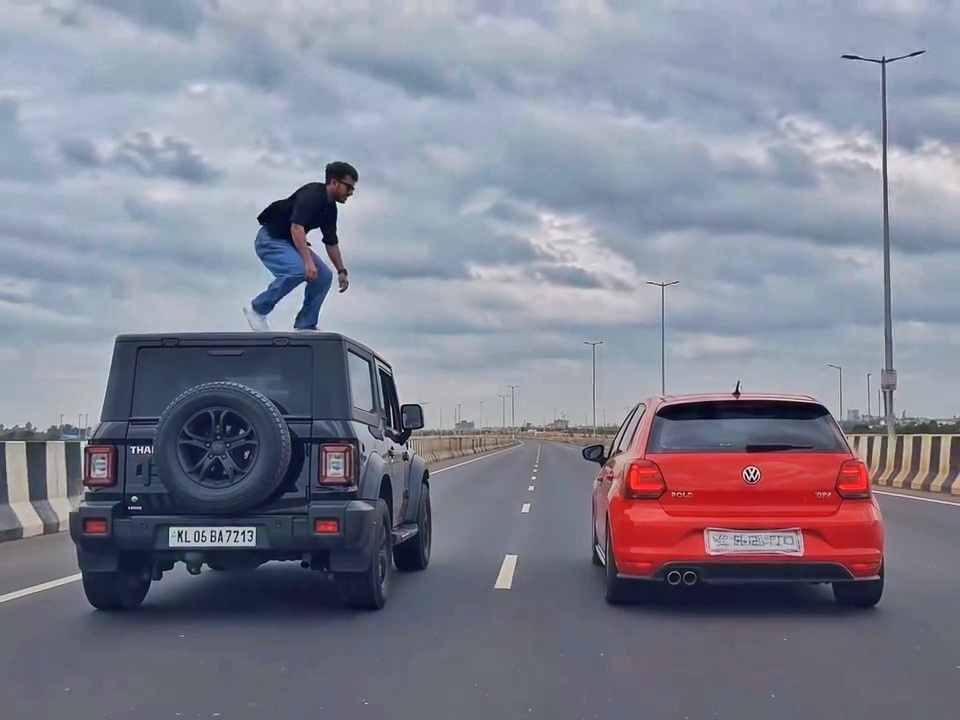
A rear-view, wide-angle cinematic shot on a wide highway under an overcast sky. A black SUV driving on the left lane and a red hatchback driving parallel on the right lane at medium speed. A young man emerges from the roof of the black SUV, stands up, and performs a dramatic acrobatic backflip through the air across the gap between the vehicles, successfully landing on top of the roof of the red h
Create a 10-second photorealistic cinematic video using the 2 uploaded reference images. Reference Image 1 = MAN and Reference Image 2 = WOMAN. Preserve both faces, identities, facial features, and hair exactly from the references. Create a scene inside an abandoned snow-covered mountain cabin. The man wears a beige beanie and petrol-blue winter parka and is crying while aiming a handgun at the wo
Use the uploaded reference video as the PRIMARY visual and motion reference. Recreate the video as closely as possible to the reference video, matching its exact shot structure, timing, pacing, camera movement, framing, subject movement, gestures, facial expressions, environment, lighting, transitions, motion blur and overall cinematic style. Do not reinterpret the sequence or create a different c
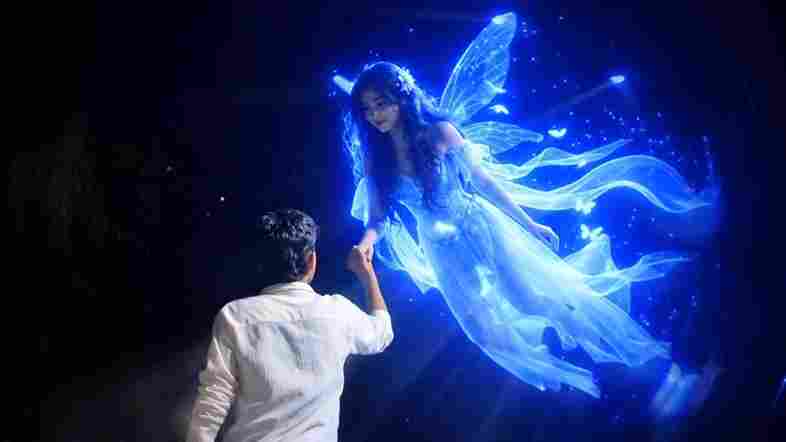
Cinematic ultra-realistic 16:9 video, 4K quality, real natural textures, rich built-in color grading, no scene cuts, continuous flow. Shots 1-3 are bright sunny daylight; during the 2-second pause in Shot 4 the sky slowly turns into a magical starry night. From Shot 5 onward everything moves in graceful SLOW MOTION. IDENTITY LOCK: the main person must be exactly the person in the uploaded referenc
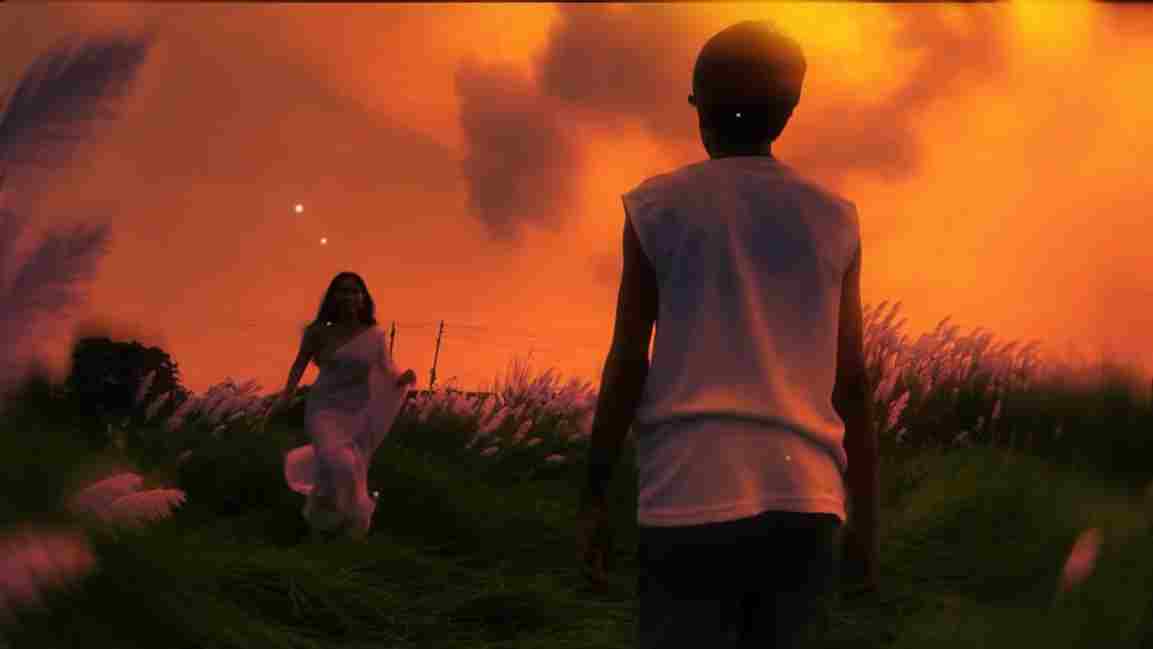
Use the uploaded photo as the exact base and preserve everything already present without any changes, including my face, facial features, hair, body shape, clothes, pose, skin tone, objects, background, lighting, colors, camera angle, perspective, depth, and composition. Add only one realistic adult Indian woman wearing a simple, elegant saree, naturally running toward me from the front. Match her
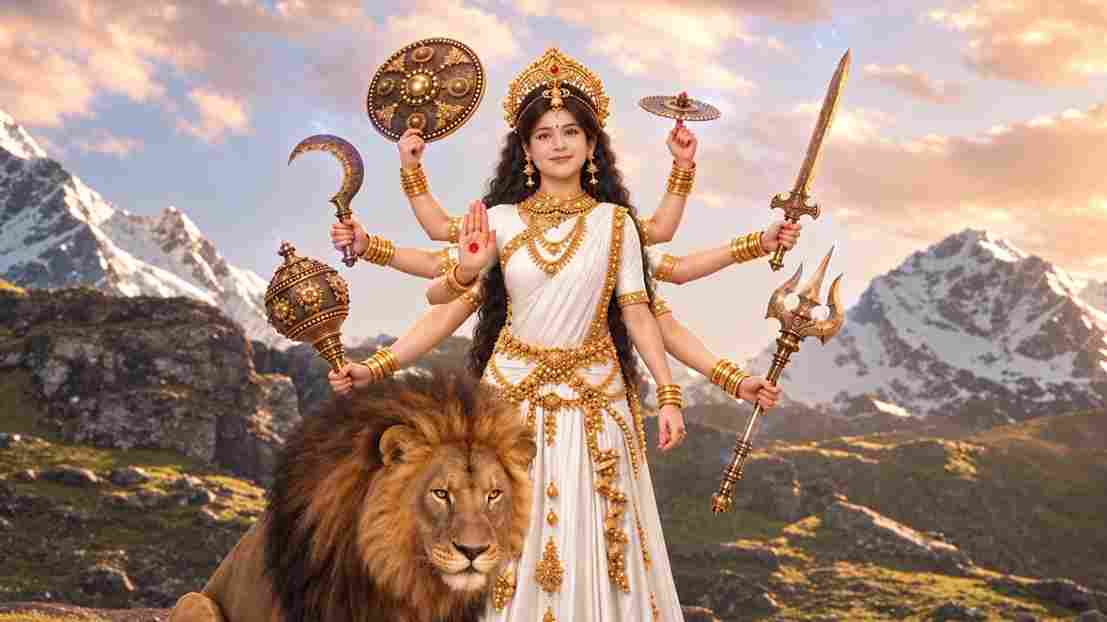
A hyper-realistic, cinematic 8k portrait of a serene Indian goddess sitting on a mossy granite cliff ledge in the Himalayas, framed by snow-capped mountain peaks and a distant cascading waterfall in the mist. She is dressed in an opulent white silk saree featuring intricate gold zari borders and a matching fitted crop blouse with crossed gold body chains. She wears heavy royal temple jewelry: an e
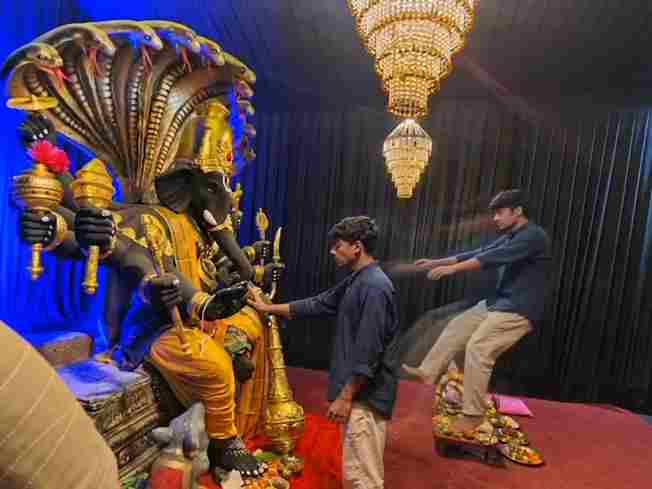
Create a near-square devotional VFX fantasy video inside a richly decorated Ganesh pandal hall. A young barefoot devotee with curly dark hair, light stubble, a dark navy button-up kurta-shirt, and beige trousers stands before a colossal graphite-black Ganesha murti seated in lalitasana on a carved throne. Ganesha wears a golden jeweled crown, white tusks, a left-curving trunk, multiple arms holdin
Swap the face of the lead male character in the source video with my face, using Image 1 as the identity reference. The attached collage shows me from several angles — use every angle to lock in an accurate likeness. Match my facial structure precisely: proportions, eye shape, nose, lips, jawline, and skin tone, along with any unique facial markers. My identity must stay stable and clearly recogni