Sad Heartbreak AI Video Editing Prompt For Flow AI
By Prompt Scene ·
Sometimes a simple video can express emotions that are difficult to explain in words.
If you want to create a sad, emotional, and cinematic heartbreak video using your own photo, this Flow AI prompt can help you create that type of video.
In this tutorial, I will share a Sad Heartbreak AI Video Editing Prompt for Flow AI that creates a cinematic night-time highway scene. The main character walks alone, looks at a photo of someone special on his phone, and spends some quiet moments thinking.
Use Photo 1 as reference for the man's face, hairstyle, skin tone, body build and height. Use Photo 2 as reference for the woman — her photo appears only as an image displayed on a phone screen, not as a live character. Keep the man's identity exactly same as his reference photo — no alteration to face, body, or hairstyle.

Keep the person's body proportions natural and realistic, matching the exact build shown in the reference photo.

Outfit (same throughout, do not change): dark green zip-up jacket, black pants, sandals.

Location (same throughout all 7 scenes, do not change): an empty night-time highway/bridge, glowing teal-green streetlights lining the road, black-and-white striped concrete road dividers, dry grass median, a foggy dark sky, occasional distant vehicle headlights, moody nighttime atmosphere.

Mood: heartbroken, quiet, reflective, sad expression throughout, slow melancholic body language.

Color grade: cinematic cool teal-and-dark tone, moody night contrast, cinematic film-grain look.

Create 7 cinematic scenes, same outfit and same night highway location throughout:

Scene 1: Close-up shot, a hand holding up a phone displaying a photo of the woman (from Photo 2), the empty night highway and streetlights blurred softly in the background, quiet emotional moment.

Scene 2: Wide shot, the man standing alone in the middle of the empty highway, head down, streetlights glowing around him, sad and lost expression.

Scene 3: Medium shot, the man slowly walking along the road, looking down, hands relaxed, streetlights and road markings stretching into the distance.

Scene 4: Medium shot, the man sitting on the road's concrete divider, elbows resting on his knees, head down, dry grass around him, streetlight glowing behind him.

Scene 5: Medium shot, the man still sitting on the divider, now leaning back and looking up at the dark sky, a moment of quiet emotional release.

Scene 6: Medium shot, the man standing and leaning against the road barrier, head bowed, hands clasped in front of him, dim shadowy lighting.

Scene 7: Wide shot, the man standing on the road median with arms crossed, facing the camera, distant vehicle headlights approaching on the road behind him, calm but melancholic expression.

Format: 16:9 landscape, 1080p resolution, slow cinematic pacing throughout, same location and color grade maintained from Scene 1 to Scene 7.

Watermark: small semi-transparent text "Prompt Scene" in the bottom-right corner, visible consistently across all 7 scenes.
The video is designed to have the same person, outfit, location, lighting, and overall mood throughout all the scenes.
What Is This Sad Heartbreak AI Video Prompt?
This is a cinematic AI video concept made for Flow AI. It focuses on loneliness, heartbreak, and quiet emotions rather than dramatic action.
The video contains seven connected scenes. The man first looks at a woman’s photo on his phone. After that, he walks alone on an empty highway, sits on a divider, looks at the night sky, and finally stands on the road while vehicle headlights appear in the background.
The important part is consistency. The same man’s face, hairstyle, body build, clothes, highway, lighting, and color grading should remain consistent from the first scene to the last.
What You Need Before Creating the Video
You will need two reference photos.
Photo 1: Use a clear photo of the man who will appear in the video. Try to use a photo where his face and hairstyle are clearly visible.
Photo 2: Use the woman’s photo that you want to display on the phone screen.
The woman’s photo should appear only on the phone screen. She should not appear as a separate live character in the video.
How To Create This Heartbreak Video in Flow AI
Follow these simple steps.
Step 1: Prepare Your Reference Photos
First, select your two photos.
Photo 1 should be the main character’s reference image. Make sure the face is clear and the photo is not heavily edited.
Photo 2 will be used as the image displayed on the phone in the first scene.
Keeping good-quality reference photos will usually make it easier for the AI to maintain visual consistency.
Step 2: Open Flow AI
Open Flow AI and start a new video generation project.
Upload Photo 1 as the reference for the male character.
When the tool allows additional image references, add Photo 2 for the phone-screen image.
The main character should be based only on Photo 1.
Step 3: Use the Complete Prompt
Now copy the prompt below and paste it into Flow AI.
Sad Heartbreak AI Video Prompt
Use Photo 1 as reference for the man’s face, hairstyle, skin tone, body build and height. Use Photo 2 as reference for the woman — her photo appears only as an image displayed on a phone screen, not as a live character. Keep the man’s identity exactly same as his reference photo — no alteration to face, body, or hairstyle.
Keep the person’s body proportions natural and realistic, matching the exact build shown in the reference photo.
Outfit (same throughout, do not change): dark green zip-up jacket, black pants, sandals.
Location (same throughout all 7 scenes, do not change): an empty night-time highway/bridge, glowing teal-green streetlights lining the road, black-and-white striped concrete road dividers, dry grass median, a foggy dark sky, occasional distant vehicle headlights, moody nighttime atmosphere.
Mood: heartbroken, quiet, reflective, sad expression throughout, slow melancholic body language.
Color grade: cinematic cool teal-and-dark tone, moody night contrast, cinematic film-grain look.
Create 7 cinematic scenes, same outfit and same night highway location throughout:
Scene 1: Close-up shot, a hand holding up a phone displaying a photo of the woman (from Photo 2), the empty night highway and streetlights blurred softly in the background, quiet emotional moment.
Scene 2: Wide shot, the man standing alone in the middle of the empty highway, head down, streetlights glowing around him, sad and lost expression.
Scene 3: Medium shot, the man slowly walking along the road, looking down, hands relaxed, streetlights and road markings stretching into the distance.
Scene 4: Medium shot, the man sitting on the road’s concrete divider, elbows resting on his knees, head down, dry grass around him, streetlight glowing behind him.
Scene 5: Medium shot, the man still sitting on the divider, now leaning back and looking up at the dark sky, a moment of quiet emotional release.
Scene 6: Medium shot, the man standing and leaning against the road barrier, head bowed, hands clasped in front of him, dim shadowy lighting.
Scene 7: Wide shot, the man standing on the road median with arms crossed, facing the camera, distant vehicle headlights approaching on the road behind him, calm but melancholic expression.
Format: 16:9 landscape, 1080p resolution, slow cinematic pacing throughout, same location and color grade maintained from Scene 1 to Scene 7.
Watermark: small semi-transparent text “NoorEditing07” in the bottom-right corner, visible consistently across all 7 scenes.
Step 4: Generate the Scenes
After adding the prompt, generate the video.
Because this prompt contains seven different scenes, the result may vary depending on how Flow AI handles multi-scene generation.
If the tool generates scenes separately, create each scene using the corresponding scene description while keeping the character and location references unchanged.
This is especially useful when you want better control over the final video.
Step 5: Maintain Character Consistency
Character consistency is one of the most important parts of this type of AI video.
If the face changes between scenes, the video may not look like the same person.
To reduce this problem, keep repeating the important instructions:
Use Photo 1 as the main identity reference.
Keep the same hairstyle.
Keep the same skin tone.
Keep the same body proportions.
Keep the same dark green jacket.
Keep the same black pants.
Keep the same sandals.
Keep the same nighttime highway environment.
Avoid adding unnecessary changes between scenes.
Step 6: Keep the Same Cinematic Look
The visual style is also important.
The prompt uses a cool teal and dark color grade with cinematic contrast and subtle film grain.
This gives the video a darker nighttime feeling and helps connect all seven scenes visually.
Try not to change the lighting style or environment between scenes. The highway, streetlights, fog, road dividers, and dry grass should feel like they belong to the same place.
Scene-by-Scene Video Idea
Here is what the final video is supposed to feel like.
Scene 1 – Looking At Her Photo
The video starts with a close-up of a phone in someone’s hand.
The woman’s photo is visible on the phone screen while the night highway remains softly blurred in the background.
This scene introduces the emotional story without showing the woman as a real person in the scene.
Scene 2 – Standing Alone
The camera moves to a wide shot.
The man is standing alone on the empty highway with his head slightly down. The teal-green streetlights create a cinematic background while the road disappears into the distance.
Scene 3 – Walking Alone
The man starts walking slowly along the road.
His hands remain relaxed and his eyes are directed downward. The road markings and streetlights create strong leading lines behind him.
Scene 4 – Sitting On The Divider
Next, he sits on the concrete divider.
His elbows rest on his knees while he looks down. Dry grass and the streetlight behind him add more depth to the shot.
Scene 5 – Looking At The Sky
The mood becomes slightly calmer.
The man leans back and looks toward the dark sky. This creates a quiet moment where the character appears lost in his thoughts.
Scene 6 – Leaning Against The Barrier
The next shot shows him standing near the road barrier.
His head is bowed and his hands are clasped in front of him. Keep the lighting dim and shadowy to maintain the melancholic atmosphere.
Scene 7 – Final Highway Shot
The final scene uses a wide composition.
The man faces the camera with his arms crossed. Distant vehicle headlights appear behind him while the night highway continues into the background.
The final shot should feel calm, emotional, and cinematic rather than overly dramatic.
Tips For A Better Result
If your first generation does not look exactly right, don’t immediately change the entire prompt.
Instead, identify the problem.
If the face changes, strengthen the identity-reference instruction.
If the clothes change, repeat the exact outfit description.
If the location changes, clearly mention that the same highway environment must remain unchanged.
If the mood becomes too happy, reinforce the quiet and melancholic expression.
If the phone photo looks incorrect, make it clear that Photo 2 must appear only as a photograph displayed on the phone screen.
Another useful tip is to generate the scenes individually when possible. You can then combine the clips later in an editor such as CapCut or VN.
Final Result
With the right reference photos and consistent generation settings, you can create a cinematic heartbreak video that tells a simple emotional story without needing complicated editing.
The combination of an empty highway, nighttime streetlights, slow walking shots, the phone photo, and the dark cinematic color grade gives the video a strong emotional atmosphere.
If you are making this type of AI video for Instagram Reels, YouTube Shorts, or other social media platforms, you can also experiment with different background music and slow transitions during the final editing stage.
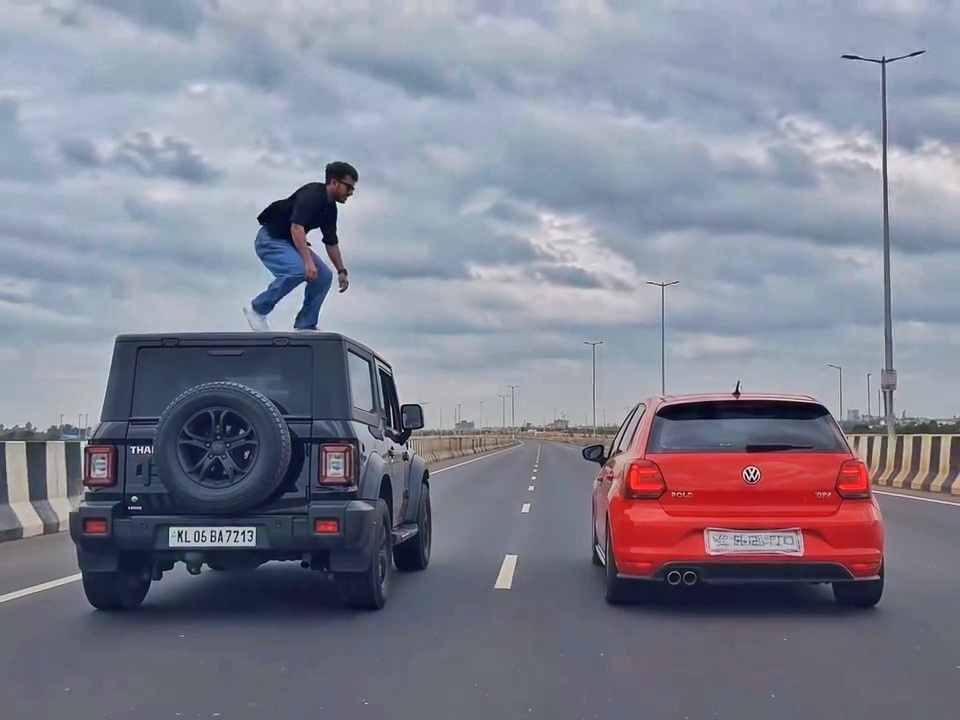
A rear-view, wide-angle cinematic shot on a wide highway under an overcast sky. A black SUV driving on the left lane and a red hatchback driving parallel on the right lane at medium speed. A young man emerges from the roof of the black SUV, stands up, and performs a dramatic acrobatic backflip through the air across the gap between the vehicles, successfully landing on top of the roof of the red h
Create a 10-second photorealistic cinematic video using the 2 uploaded reference images. Reference Image 1 = MAN and Reference Image 2 = WOMAN. Preserve both faces, identities, facial features, and hair exactly from the references. Create a scene inside an abandoned snow-covered mountain cabin. The man wears a beige beanie and petrol-blue winter parka and is crying while aiming a handgun at the wo
Use the uploaded reference video as the PRIMARY visual and motion reference. Recreate the video as closely as possible to the reference video, matching its exact shot structure, timing, pacing, camera movement, framing, subject movement, gestures, facial expressions, environment, lighting, transitions, motion blur and overall cinematic style. Do not reinterpret the sequence or create a different c
Cinematic ultra-realistic 16:9 video, 4K quality, real natural textures, rich built-in color grading, no scene cuts, continuous flow. Shots 1-3 are bright sunny daylight; during the 2-second pause in Shot 4 the sky slowly turns into a magical starry night. From Shot 5 onward everything moves in graceful SLOW MOTION. IDENTITY LOCK: the main person must be exactly the person in the uploaded referenc
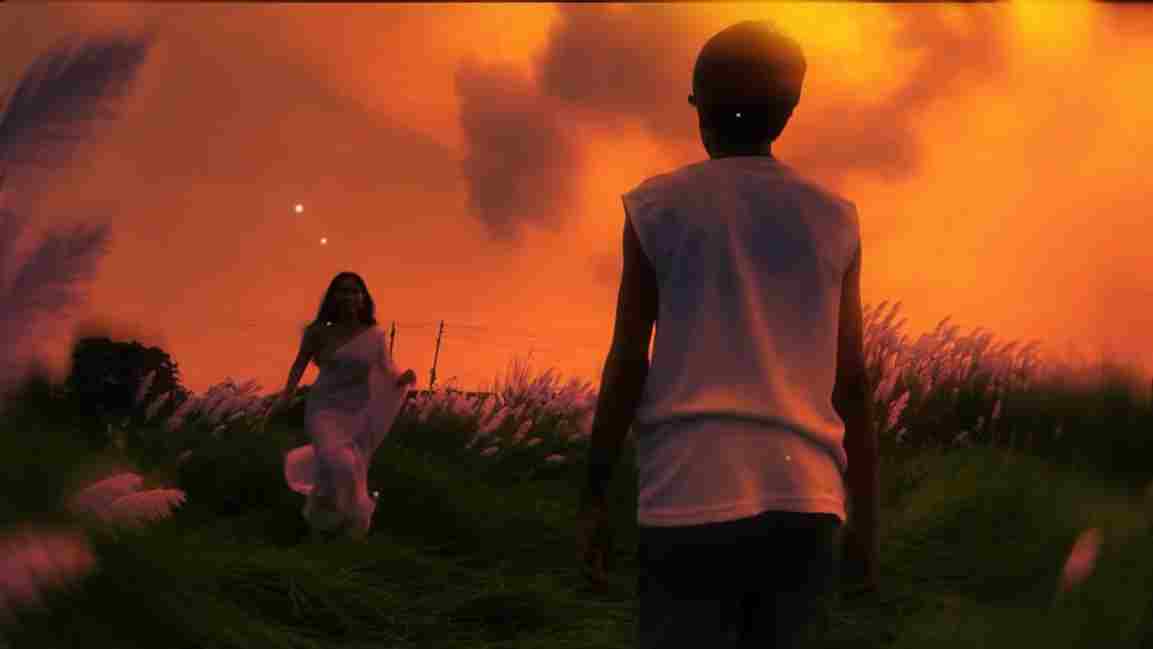
Use the uploaded photo as the exact base and preserve everything already present without any changes, including my face, facial features, hair, body shape, clothes, pose, skin tone, objects, background, lighting, colors, camera angle, perspective, depth, and composition. Add only one realistic adult Indian woman wearing a simple, elegant saree, naturally running toward me from the front. Match her
A hyper-realistic, cinematic 8k portrait of a serene Indian goddess sitting on a mossy granite cliff ledge in the Himalayas, framed by snow-capped mountain peaks and a distant cascading waterfall in the mist. She is dressed in an opulent white silk saree featuring intricate gold zari borders and a matching fitted crop blouse with crossed gold body chains. She wears heavy royal temple jewelry: an e
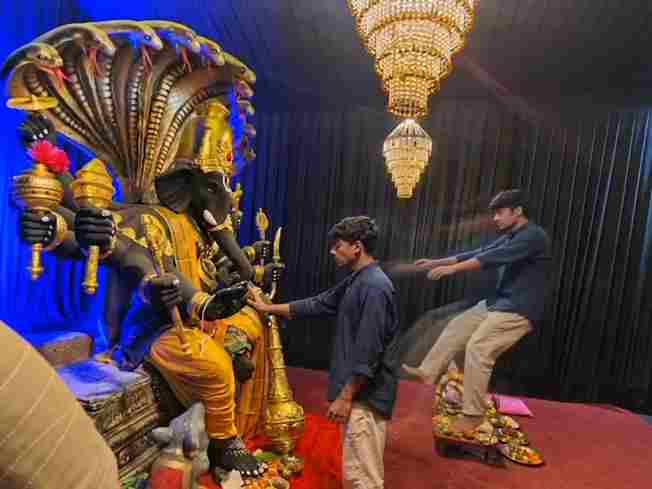
Create a near-square devotional VFX fantasy video inside a richly decorated Ganesh pandal hall. A young barefoot devotee with curly dark hair, light stubble, a dark navy button-up kurta-shirt, and beige trousers stands before a colossal graphite-black Ganesha murti seated in lalitasana on a carved throne. Ganesha wears a golden jeweled crown, white tusks, a left-curving trunk, multiple arms holdin
Swap the face of the lead male character in the source video with my face, using Image 1 as the identity reference. The attached collage shows me from several angles — use every angle to lock in an accurate likeness. Match my facial structure precisely: proportions, eye shape, nose, lips, jawline, and skin tone, along with any unique facial markers. My identity must stay stable and clearly recogni