Royal Kurta Fashion Walk AI Video Prompt For Flow AI
By Prompt Scene ·
Creating a stylish cinematic video with your own face is now much easier with AI video tools.
If you want to create a royal traditional fashion-walk video while keeping your own face, hairstyle, skin tone, and body appearance consistent, this Royal Kurta Fashion Walk AI Video Prompt for Flow AI can help you create that style.
Use the uploaded reference photo for the man's face, hairstyle, skin tone, body build and height. Keep identity exactly same as reference photo — no alteration to face, body, or hairstyle in any scene. Keep his skin natural, clean, and clear exactly as shown in the reference photo — no added blemishes, spots, or texture flaws.

Keep the person's body proportions natural and realistic, matching the exact build shown in the reference photo — do not add extra muscle, height, or bulk. This must work accurately for any person of any age or body type who uploads their own reference photo — the generated face, skin, and body must always match the uploaded photo exactly, never a generic or different look.

Outfit (same throughout, do not change): a grey kurta-pajama set with a mandarin collar, delicate silver embroidery along the collar and the hem border, relaxed straight-fit pajama pants in matching grey, black formal slip-on shoes, holding a pair of sunglasses.

Location (same throughout all 7 scenes, do not change): an outdoor heritage monument courtyard with tall white domed structures and ornate stone archways in the background, a red sandstone railing with carved lattice (jaali) pattern in the foreground, green trees, soft natural daylight.

Color grade: rich, natural, vibrant cinematic color grading — true-to-life skin tones and fabric colors, soft daylight contrast, sharp realistic detail, not faded or desaturated, consistent across every scene.

Create 7 cinematic scenes, same outfit and same monument location throughout:

Scene 1: Close-up shot of the man's hands holding his sunglasses at waist level while walking, grey kurta with silver embroidered hem visible, blurred green garden path behind him.

Scene 2: Medium close-up shot, walking toward the camera, sunglasses held in both hands near his chest, silver embroidered collar visible, white boundary wall and greenery blurred behind him.

Scene 3: Close-up side profile shot, man putting on his sunglasses with one hand, calm composed expression, white domed monument softly blurred in the background.

Scene 4: Full body front shot, man standing confidently facing the camera, sunglasses on, white domed monument and red sandstone jaali railing clearly visible behind him.

Scene 5: Close-up back-angle shot, man looking over his shoulder toward the camera, sunglasses on, green trees blurred in the background.

Scene 6: Full body walking shot, man walking confidently toward the camera near the red sandstone railing, white monument domes and minarets framing him in the background.

Scene 7: Medium shot, man standing calm and composed, sunglasses on, soft natural daylight, monument and greenery forming a balanced cinematic backdrop behind him.

Format: 9:16 vertical, 1080p resolution, smooth cinematic pacing with natural camera movement throughout, same location and color grade maintained from Scene 1 to Scene 7.

Watermark: small semi-transparent text "NoorEditing07" in the bottom-right corner, visible consistently across all 7 scenes.
The idea is simple: upload your reference photo, use a detailed prompt, and generate a sequence of cinematic scenes. The prompt is designed around a traditional grey kurta-pajama outfit, a heritage monument courtyard, natural daylight, and smooth fashion-walk movements.
In this guide, you will learn how to use the prompt step by step and how to get better results from Flow AI.
What Is the Royal Kurta Fashion Walk AI Video?
The Royal Kurta Fashion Walk AI Video is a cinematic AI video concept where a person appears in a traditional kurta-pajama outfit while walking and posing at a beautiful heritage location.
The video contains seven different scenes. Each scene uses a different camera angle, but the character, outfit, location, lighting, and overall visual style remain consistent.
The concept works especially well for:
Instagram Reels
YouTube Shorts
TikTok-style vertical videos
Fashion edits
Profile videos
Traditional outfit showcases
AI cinematic videos
Personal social media content
The most important part is the reference photo. Your uploaded photo acts as the visual reference for the person, helping the generated character resemble the person in the image.
Main Features of This AI Video Prompt
This prompt focuses on several important elements.
1. Your Reference Face
The prompt asks the AI to use the uploaded reference photo for the man’s facial appearance, hairstyle, skin tone, body build, and overall proportions.
This is useful when you want the final video to look like you rather than a completely different AI-generated person.
2. Traditional Royal Outfit
The character wears a grey kurta-pajama set with a mandarin collar and subtle silver embroidery. Matching pajama pants and black formal slip-on shoes complete the traditional appearance.
The outfit remains consistent across the scenes.
3. Heritage Background
The video takes place in an outdoor heritage monument courtyard featuring white domes, stone archways, red sandstone railing, carved jaali patterns, and greenery.
This gives the video a premium and traditional visual atmosphere.
4. Seven Cinematic Scenes
The prompt contains seven scenes with different camera compositions. These include close-ups, walking shots, side profiles, full-body shots, and medium shots.
Changing the camera angle keeps the final video visually interesting.
How to Create Your Own Royal Kurta Fashion Walk Video in Flow AI
Follow these steps carefully.
Step 1: Choose a Good Reference Photo
First, select a clear photo of yourself.
For the best identity consistency, use a photo where your face is clearly visible. Avoid heavily edited photographs, extreme filters, very dark images, or photos where your face is partially hidden.
A clear reference image gives the AI more useful visual information.
If possible, choose a photo with:
Clear facial visibility
Good lighting
Natural skin appearance
Visible hairstyle
Natural body proportions
Minimal filters
No major obstruction over the face
The better the reference image, the easier it is for the AI to understand your appearance.
Step 2: Open Flow AI
Open Flow AI and start a new video-generation project.
The exact interface and available options may change over time, so use the image/reference upload option available in your current version.
Look for the option that allows you to add an image or reference photo.
Step 3: Upload Your Reference Photo
Upload your selected photograph as the reference image.
The purpose of this image is to provide the visual identity for your character.
After uploading it, make sure the image is properly recognized before entering the prompt.
Do not use somebody else’s photograph without permission. For personal AI videos, it is best to use your own image or an image you have permission to use.
Step 4: Copy the Royal Kurta Prompt
Now copy the complete Royal Kurta Fashion Walk AI Video Prompt.
The prompt contains instructions about:
Character appearance
Face and hairstyle
Skin tone
Body proportions
Clothing
Location
Lighting
Camera angles
Seven scenes
Color grading
Video format
Watermark
Paste the prompt into the appropriate prompt field in Flow AI.
Step 5: Keep the Character Consistent
Character consistency is one of the most important parts of this video.
The prompt specifically tells the AI to maintain the same person throughout all seven scenes.
It also keeps the outfit and location consistent.
However, AI-generated videos can sometimes introduce small differences between scenes. A clear reference image and precise instructions can help reduce these changes, but no prompt can guarantee perfect identity preservation in every generation.
Step 6: Generate the Scenes
The prompt includes seven cinematic scenes.
Scene 1 focuses on the hands holding sunglasses while walking.
Scene 2 moves closer to the character as he walks toward the camera.
Scene 3 shows a side-profile moment while putting on the sunglasses.
Scene 4 presents a full-body fashion pose with the monument visible behind him.
Scene 5 uses a back-angle composition with the character looking over his shoulder.
Scene 6 shows a confident full-body walk toward the camera.
Scene 7 finishes with a calm medium shot against the heritage background.
Together, these scenes create the feeling of a short cinematic fashion sequence.
Step 7: Use the 9:16 Format
For Reels, Shorts, and other vertical platforms, use a 9:16 aspect ratio.
The prompt is already designed for vertical video.
A vertical composition also gives enough space to show the person’s full body in walking scenes while keeping the monument visible in the background.
Step 8: Check the Generated Video
Once Flow AI finishes generating the video, watch the complete sequence carefully.
Check whether:
The face remains consistent
The hairstyle stays similar
The outfit remains grey
The silver embroidery is visible
The sunglasses look natural
The monument remains consistent
The body proportions look realistic
The walking motion looks natural
The lighting remains consistent
The video stays vertical
If one scene looks different, regenerate that scene if your workflow allows individual scene regeneration.
Step 9: Add Final Editing
After generating the clips, you can combine them in a video editor.
Arrange the scenes in the same 1-to-7 order to create a smooth progression.
You can also add suitable background music, gentle transitions, and simple cinematic sound effects.
Avoid adding too many effects because the original prompt already aims for a clean cinematic appearance.
Step 10: Export and Share
Finally, export your completed vertical video in a suitable quality for your social media platform.
Before publishing, watch the exported version once more to make sure the face, clothing, scenes, and watermark look correct.
Why This Prompt Can Produce Better Results
A good AI video prompt should not only describe the person. It should also explain the environment, clothing, camera movement, lighting, and continuity.
This prompt does exactly that.
Instead of simply saying “create a man walking in a kurta,” it gives Flow AI much more visual information.
For example, it specifies the grey kurta, silver embroidery, heritage architecture, red sandstone jaali railing, greenery, natural daylight, cinematic color grading, and different camera shots.
These details help establish a stronger visual direction.
Tips for Better Royal Fashion Videos
Use a Natural Reference Photo
Avoid using a heavily edited selfie as your reference. Natural images generally provide better visual information.
Keep the Prompt Unchanged
If you are generating multiple scenes, avoid changing important character details between generations.
Changing the outfit, hairstyle, or location description can make continuity more difficult.
Use Consistent Lighting
The prompt uses soft natural daylight. Keeping the lighting direction consistent helps the scenes feel like they belong to the same video.
Avoid Excessive Camera Movement
Smooth camera movement usually works better for a luxury fashion-walk concept than extremely fast movements.
Review Hands and Accessories
AI video generation can occasionally produce inconsistencies in hands, sunglasses, clothing details, or accessories. Check these areas before publishing.
Final Thoughts
The Royal Kurta Fashion Walk AI Video Prompt For Flow AI is a simple way to create a premium-looking traditional fashion video using your own reference photo.
The key is to start with a clear reference image and provide Flow AI with detailed instructions about the character, clothing, environment, camera shots, and visual style.
With the seven-scene structure, you can create a complete cinematic sequence instead of relying on one repetitive shot. The grey kurta, silver embroidery, heritage architecture, greenery, and natural daylight also give the video a distinctive royal Indian aesthetic.
Remember that AI generation can sometimes produce small visual differences. If the first result is not perfect, refine or regenerate the affected scene rather than changing the entire concept.
Now, upload your own reference photo, paste the prompt into your Flow AI workflow, generate the scenes, combine them in order, and create your own Royal Kurta Fashion Walk AI Video for social media.
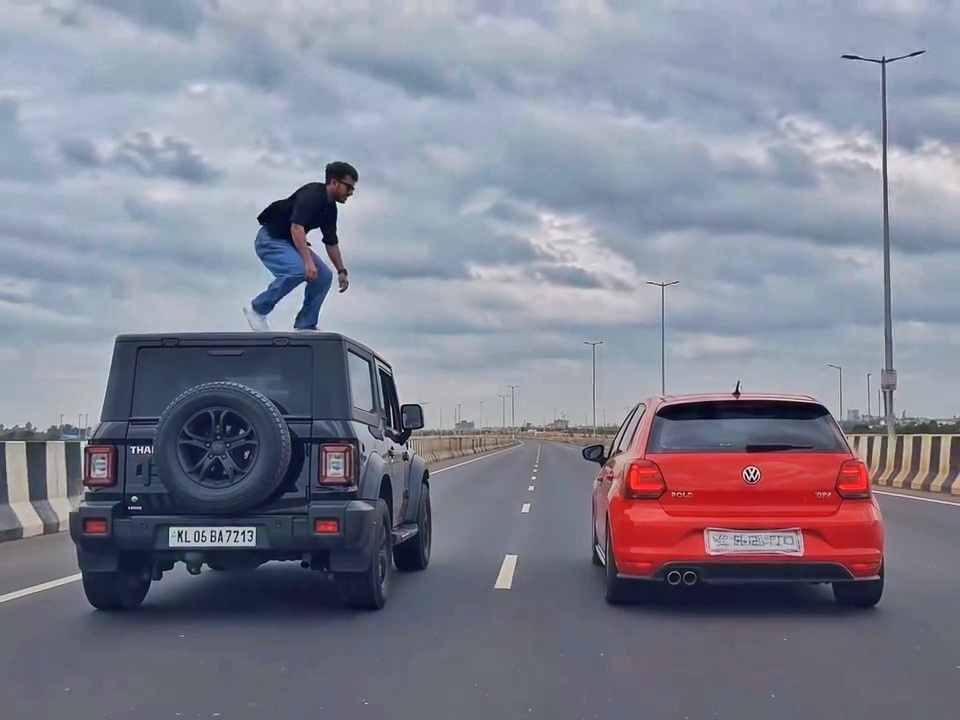
A rear-view, wide-angle cinematic shot on a wide highway under an overcast sky. A black SUV driving on the left lane and a red hatchback driving parallel on the right lane at medium speed. A young man emerges from the roof of the black SUV, stands up, and performs a dramatic acrobatic backflip through the air across the gap between the vehicles, successfully landing on top of the roof of the red h
Create a 10-second photorealistic cinematic video using the 2 uploaded reference images. Reference Image 1 = MAN and Reference Image 2 = WOMAN. Preserve both faces, identities, facial features, and hair exactly from the references. Create a scene inside an abandoned snow-covered mountain cabin. The man wears a beige beanie and petrol-blue winter parka and is crying while aiming a handgun at the wo
Use the uploaded reference video as the PRIMARY visual and motion reference. Recreate the video as closely as possible to the reference video, matching its exact shot structure, timing, pacing, camera movement, framing, subject movement, gestures, facial expressions, environment, lighting, transitions, motion blur and overall cinematic style. Do not reinterpret the sequence or create a different c
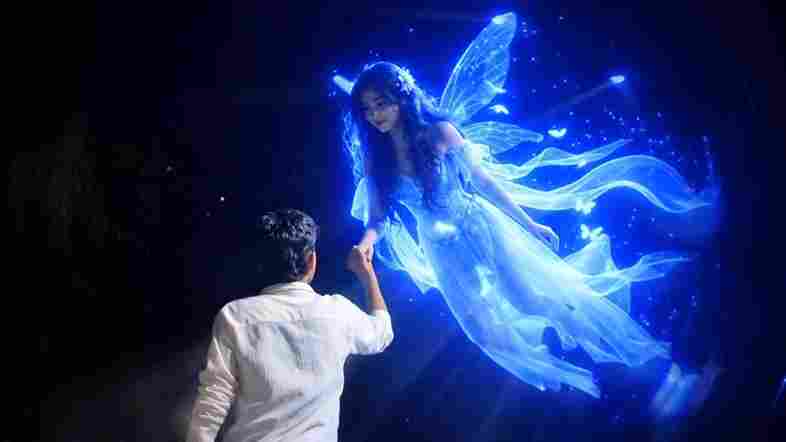
Cinematic ultra-realistic 16:9 video, 4K quality, real natural textures, rich built-in color grading, no scene cuts, continuous flow. Shots 1-3 are bright sunny daylight; during the 2-second pause in Shot 4 the sky slowly turns into a magical starry night. From Shot 5 onward everything moves in graceful SLOW MOTION. IDENTITY LOCK: the main person must be exactly the person in the uploaded referenc
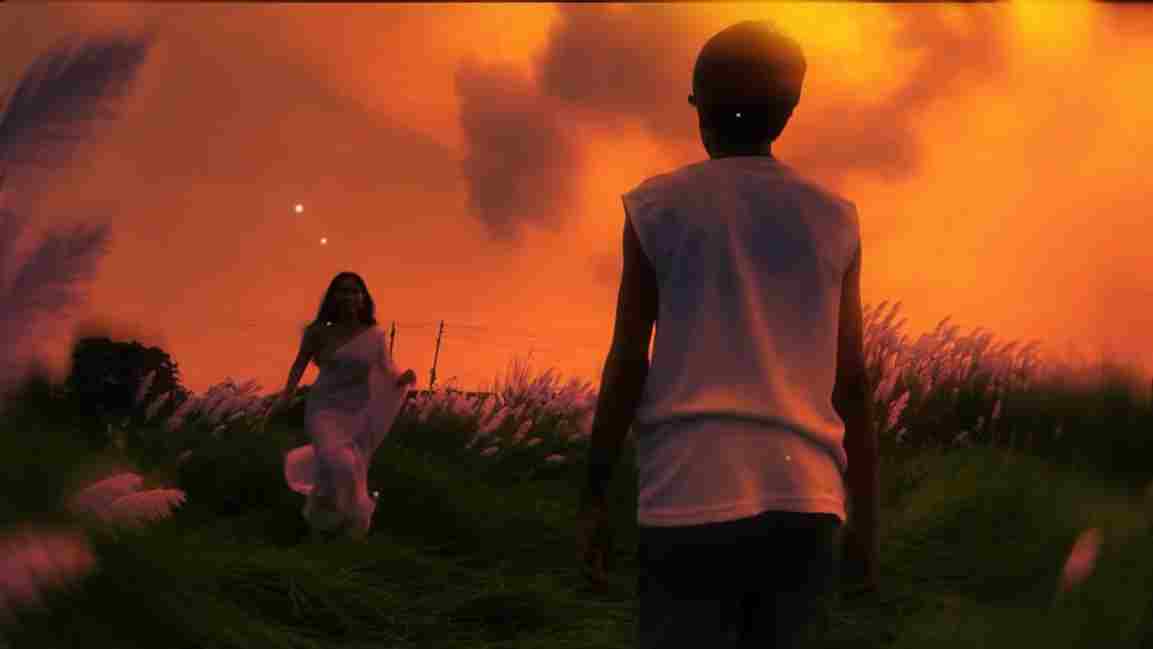
Use the uploaded photo as the exact base and preserve everything already present without any changes, including my face, facial features, hair, body shape, clothes, pose, skin tone, objects, background, lighting, colors, camera angle, perspective, depth, and composition. Add only one realistic adult Indian woman wearing a simple, elegant saree, naturally running toward me from the front. Match her
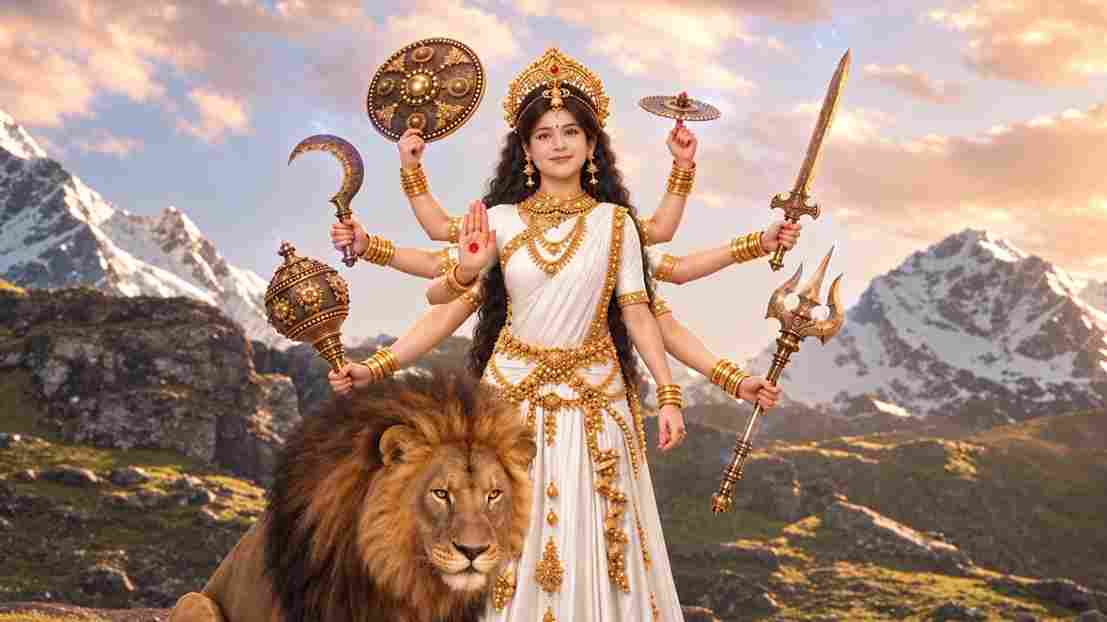
A hyper-realistic, cinematic 8k portrait of a serene Indian goddess sitting on a mossy granite cliff ledge in the Himalayas, framed by snow-capped mountain peaks and a distant cascading waterfall in the mist. She is dressed in an opulent white silk saree featuring intricate gold zari borders and a matching fitted crop blouse with crossed gold body chains. She wears heavy royal temple jewelry: an e
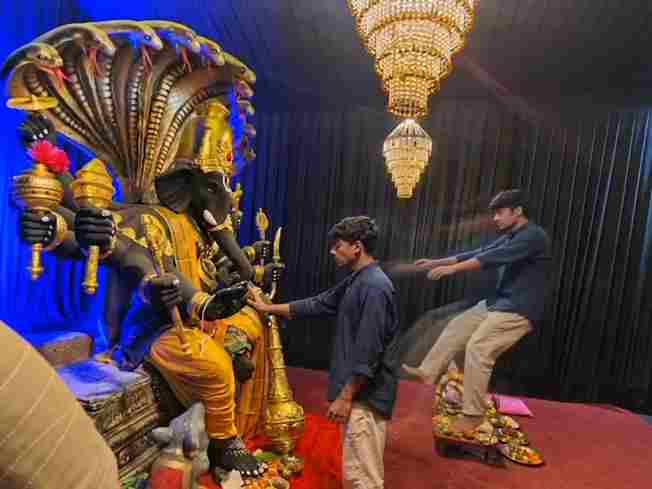
Create a near-square devotional VFX fantasy video inside a richly decorated Ganesh pandal hall. A young barefoot devotee with curly dark hair, light stubble, a dark navy button-up kurta-shirt, and beige trousers stands before a colossal graphite-black Ganesha murti seated in lalitasana on a carved throne. Ganesha wears a golden jeweled crown, white tusks, a left-curving trunk, multiple arms holdin
Swap the face of the lead male character in the source video with my face, using Image 1 as the identity reference. The attached collage shows me from several angles — use every angle to lock in an accurate likeness. Match my facial structure precisely: proportions, eye shape, nose, lips, jawline, and skin tone, along with any unique facial markers. My identity must stay stable and clearly recogni