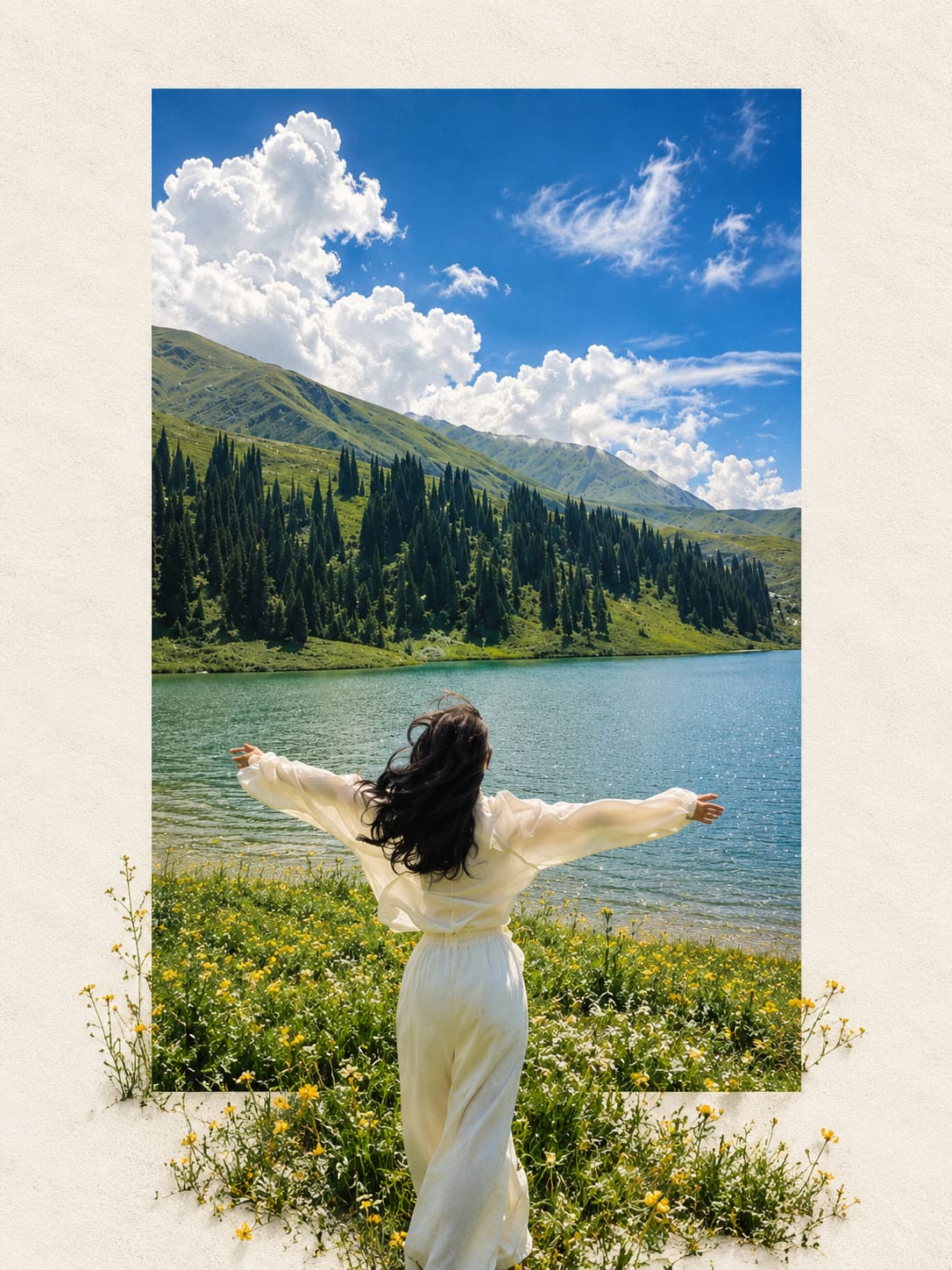
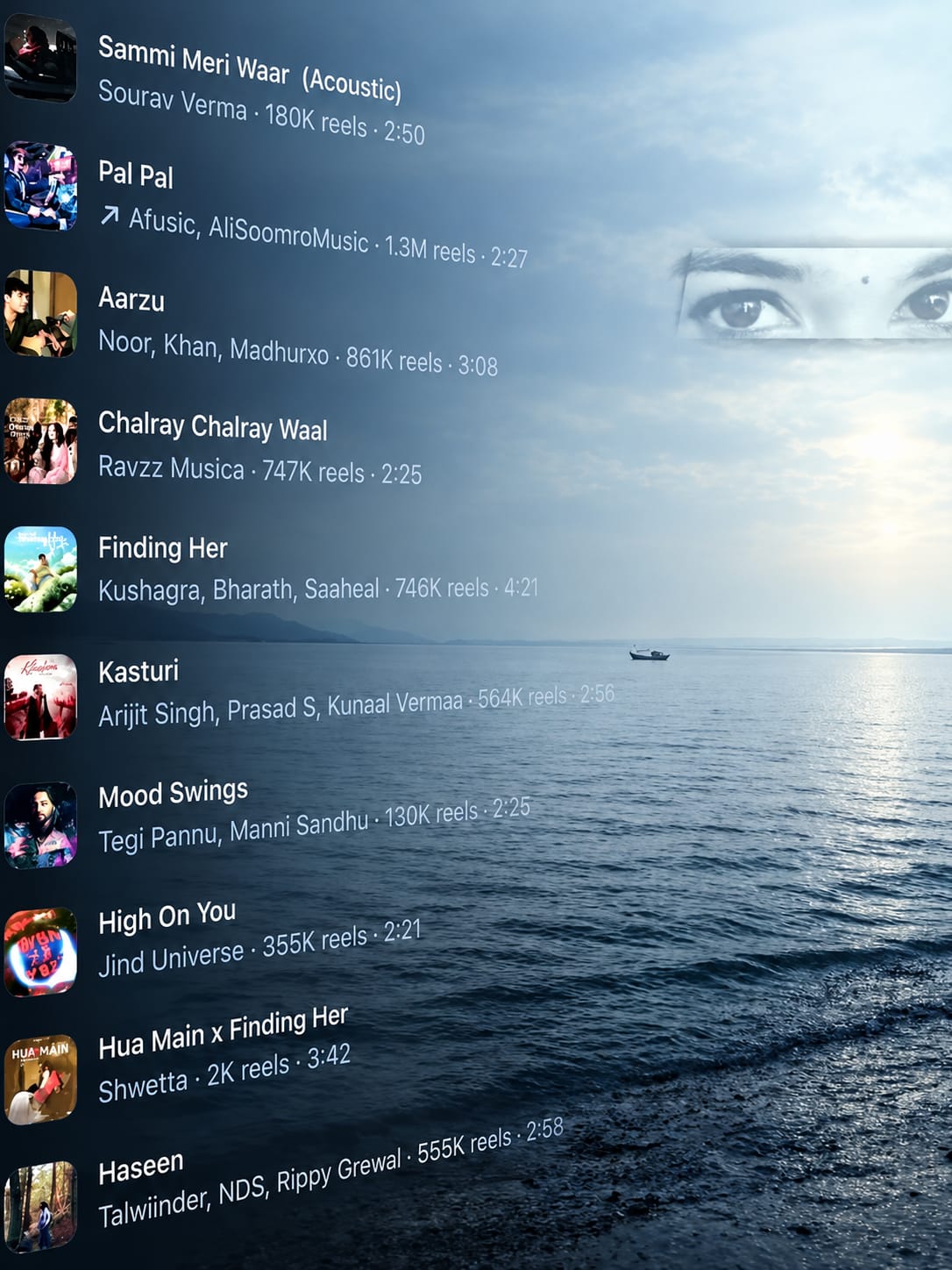
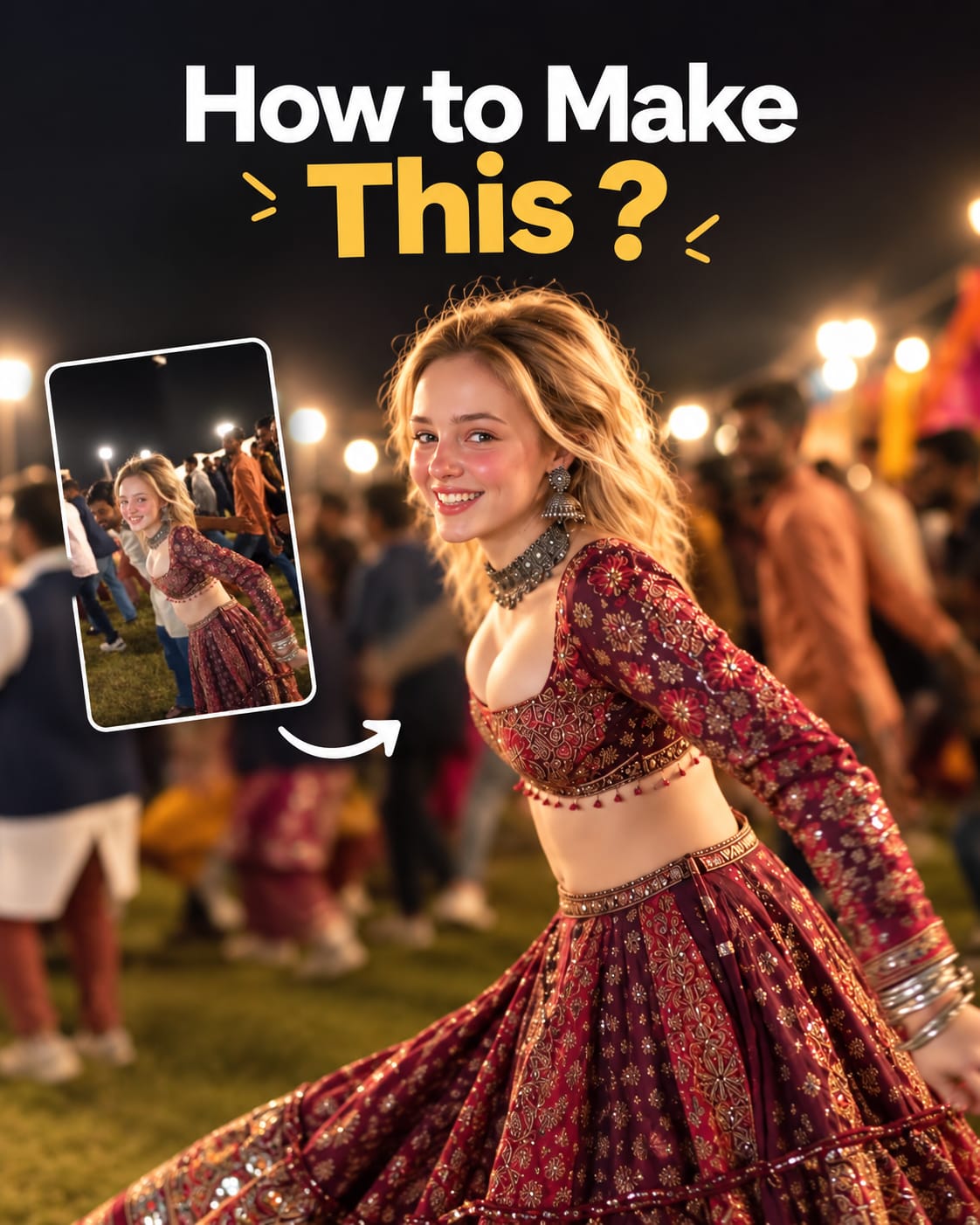
Brothers and sisters, the New Year is just around the corner, and it’s the perfect time to plan your celebrations and social media posts. Everyone loves sharing something special to mark the beginning of a fresh year, but why settle for a generic “Happy New Year” post? This year, let’s do something unique! Create a personalized photo with a stunning background to impress your followers.
In this article, I will guide you step-by-step on how to create a fantastic New Year image using PicsArt. It’s quick, easy, and you can achieve professional results right from your phone. So, let’s dive into the exciting process of editing your 2025 New Year photo!
Why Personalize Your New Year Posts?
Social media trends evolve every year. From trending hashtags to creative templates, staying up-to-date is key to engaging your audience. Personalized images not only stand out but also showcase your creativity. In 2025, customized New Year photo edits are expected to dominate the feeds. Whether you’re celebrating with friends or reflecting on the year gone by, a beautifully edited photo will capture the mood perfectly.
Step-by-Step Guide to Creating New Year Images in PicsArt
1. Download Backgrounds and Stock Images
Before starting, you’ll need a striking background to set the tone. Search for “2025 New Year backgrounds” or download them from websites offering free resources. You can also check out my collection of ready-to-use backgrounds to save time.
2. Open PicsArt and Add the Background
- Launch the PicsArt app on your smartphone.
- Tap on the “+” button and select the downloaded New Year background from your gallery.
- Adjust the background size if necessary by cropping or resizing it to fit your desired aspect ratio.
3. Add Your Photo
- Select your photo and import it into PicsArt.
- If you only want part of your photo, crop it accordingly.
- Use PicsArt’s “Remove Background” tool to cut out the subject (you) from the image.
- Position your cutout over the New Year background. Resize and rotate it to blend seamlessly with the design.
4. Incorporate Text and Graphics
- Go to the “Text” tool and type “2024 to 2025” or any custom New Year message.
- Choose an elegant font style that matches the festive theme. PicsArt offers a wide variety of fonts for free.
- Experiment with text colors, shadows, and outlines to make it pop.
- Add stickers, sparkles, or fireworks graphics from PicsArt’s library to enhance the celebratory vibe.
5. Fine-Tune the Image in PicsArt
- Use the “Effects” tool to apply filters that blend your photo with the background.
- Adjust the brightness, contrast, and saturation to harmonize the elements.
- Experiment with “Blur” effects to give your background a professional touch while keeping the subject sharp.
6. Export and Save
Once satisfied with your edits, export the final image by tapping on “Save.” You’re now ready to share your creation on social media!
Advanced Editing with Lightroom
To add an extra layer of polish to your photo, consider using Lightroom. Here’s how:
- Light Tuning:
- Balance the overall brightness to match the background and subject.
- Adjust the highlights and shadows for a balanced look.
- Color Grading:
- Reduce orange saturation to avoid overexposing skin tones.
- Increase brightness and sharpness to make the face stand out.
- Fine-tune other colors to match the mood of your background.
- Final Adjustments:
- Use the “Clarity” and “Dehaze” tools to add depth and detail.
- Apply a vignette effect to subtly focus attention on the subject.
Where to Find Free Resources
If you’re wondering where to get high-quality backgrounds and templates, you’re in luck. Many websites and apps offer free resources:
- Unsplash: Find vibrant and festive New Year backgrounds.
- PicsArt Library: Access thousands of stickers, frames, and effects.
- Freepik: Download customizable New Year templates.
Alternatively, you can explore my exclusive collection of backgrounds and templates, specially designed for 2025. Comment below if you’d like access, and I’ll provide more options.
Tips for Creating Stunning New Year Edits
- Stay Trendy: Incorporate trending elements like metallic colors, neon lights, or futuristic themes.
- Use High-Quality Images: Ensure both your background and photo are high resolution for a crisp final result.
- Experiment: Don’t hesitate to try different effects, layouts, and graphics.
- Keep It Balanced: Avoid overloading your image with too many elements. Simplicity often has the most impact.
Share and Celebrate
After completing your masterpiece, share it on Instagram, Facebook, or any other platform with trending hashtags like #HappyNewYear2025, #NewYearPhotoEdit, and #PicsArtCreations. Engage with your audience by inviting them to create their own edits and tag you in their posts.
Conclusion
Creating a personalized New Year image with PicsArt is a fun and creative way to celebrate the arrival of 2025. With the step-by-step guide provided, you can design a professional-looking edit that will wow your friends and followers. So, start editing today and make this New Year unforgettable!
For more tutorials, templates, and tips, visit my website or join my Telegram channel. Let’s make 2025 your most creative year yet! Happy New Year in advance!