Viral Fancam AI Video Tutorial: Create Trending AI Fancam Videos
By Prompt Scene ·
▶ Result generated with this prompt
What Is a Viral Fancam AI Video?
Viral fancam AI videos are becoming popular on Instagram Reels, YouTube Shorts, and other social media platforms because of their smooth motion, cinematic effects, and eye-catching visuals. These videos often feature a person, celebrity, character, or favorite subject with stylish camera movements, glowing lights, slow-motion effects, and beat-synced transitions. With the help of AI video tools, you can create similar edits without needing professional cameras or advanced video editing skills. Whether you are a beginner, content creator, or video editor, learning how to create a viral fancam AI video can help you make more engaging content for your audience. In this tutorial, we will explain how to create your own AI fancam video using a reference image, an AI video generator, and a few simple editing techniques.
Tools Required to Create a Viral Fancam AI Video
Before starting the viral fancam AI video tutorial, you need a few basic tools. First, choose a high-quality photo of the person or subject you want to feature in your video. A clear image with good lighting and a visible face generally produces better results. Next, use an AI video generation tool that supports image-to-video animation and allows you to describe camera movements, lighting, and motion through a text prompt. Depending on the tool you choose, you may be able to generate short cinematic clips directly from your image. You can then use a mobile editing application such as CapCut to add music, transitions, speed effects, color grading, and other finishing touches. Some AI tools offer free credits, while others require a paid subscription, so check their current plans before getting started.
How to Create a Viral Fancam AI Video Step by Step
Start by selecting a high-resolution image that matches the style of fancam videos you want to create. Open your preferred AI video generator and select the image-to-video feature. Upload your photo, then enter a detailed prompt describing the animation you want, including smooth camera movement, realistic facial expressions, cinematic lighting, and natural motion. Generate the video and review the result to make sure the subject remains consistent throughout the clip. If the first result looks unnatural, adjust the prompt to reduce excessive movement or facial distortion and generate another version. Once you have a suitable clip, import it into CapCut or another video editor. Trim unnecessary frames, synchronize the strongest camera movements with the music beat, and add subtle zoom effects or transitions where needed. Finally, export the video in vertical 9:16 format for Instagram Reels and YouTube Shorts, using a resolution supported by your editing application and social platform.
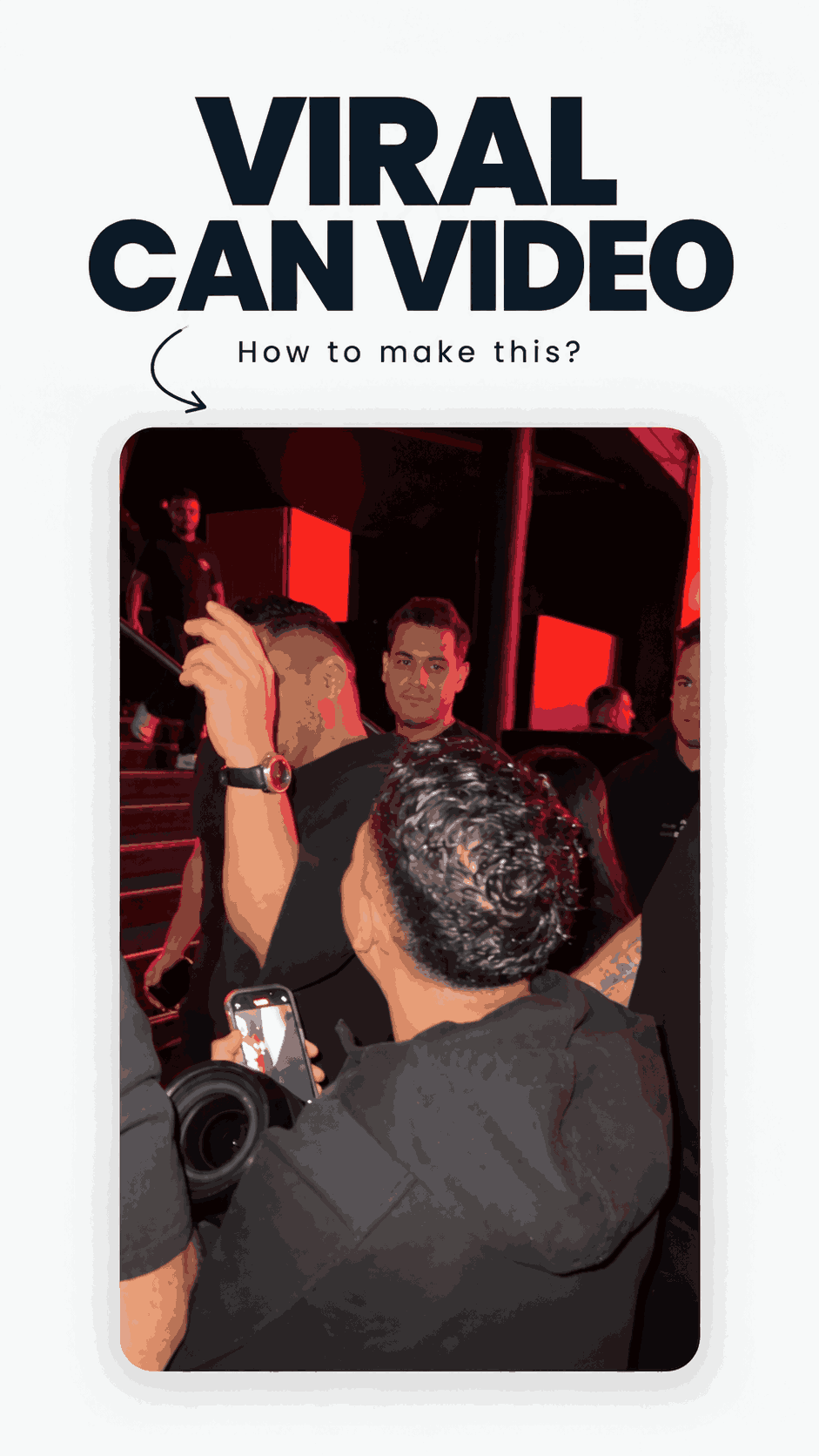
Video-to-video character replacement. Keep @Video 1 exactly the same: same handheld iPhone camera movement and shake, same framing, timing, red backstage lighting, background, crowd, bodyguards, and the fan in the foreground holding the phone and the big DSLR lens. Do not change anyone else.

Replace only the main man in the center (the one who walks in, talks to the fan and laughs) with the person from @Image 1. Use the exact face, hairstyle, skin tone, body shape and outfit from @Image 1. Do not keep the original man’s clothes, body size or appearance.

Keep all of his acting and timing exactly the same: he walks in through the people, stops in front of the fan and talks very animatedly and playfully. He makes a pinched-finger gesture near his mouth, waves an open palm while telling a story, points at the fan’s phone, leans down to look at the screen and then laughs hard, covering his forehead with his hand. Same head movements, same lip movement, same expressions.

Photorealistic, the identity from @Image 1 stays consistent in every frame, natural skin that matches the red ambient light, no face morphing, no flicker, no extra people, real iPhone fan-cam look, 9:16 vertical.
If you want to create a cinematic AI fancam video, you can start with the following ready-to-copy prompt and customize it according to your subject and preferred aesthetic: “Create an ultra-realistic cinematic fancam video using the uploaded image as the main visual reference. Preserve the subject’s recognizable facial features, natural skin tone, hairstyle, clothing, and overall identity. Use smooth professional camera movements, gentle tracking shots, dynamic close-ups, subtle zoom-ins, elegant slow motion, natural blinking, and realistic micro-expressions. Add cinematic lighting, soft highlights, realistic shadows, a shallow depth of field, detailed textures, and a polished music-video aesthetic. Keep the subject visually consistent throughout the entire clip and ensure that all movements look natural and fluid. Avoid facial distortion, unnatural body movements, flickering, extra fingers, sudden scene changes, and artificial-looking skin. Create a visually engaging, high-quality vertical video in a 9:16 aspect ratio, suitable for Instagram Reels and YouTube Shorts.” For the best results, adjust the camera movement and lighting descriptions to match your reference image. Remember that different AI generators interpret prompts differently, so you may need to experiment with a few variations.
Best Editing Tips for a More Viral Look
After generating your AI fancam footage, focus on making the final edit visually engaging rather than adding too many effects. Choose music that matches the mood of your video and align important camera movements with the beat. Use smooth zoom-ins, subtle motion blur, speed ramps, and clean transitions to create a professional appearance. You can also experiment with warm cinematic tones, cool blue lighting, or soft pink color grading, depending on the style you want. Avoid excessive sharpening, oversaturated colors, and repeated transitions because they can make the video look artificial. Keep the opening seconds interesting by starting with a strong close-up or an attractive camera movement. If your AI generator creates multiple short clips, arrange them in a sequence that feels natural and consistent. Before exporting, check the video for flickering, distorted facial details, awkward movements, and audio synchronization issues. Small improvements in timing and visual consistency can make a significant difference in the overall quality of your fancam edit.
Common Mistakes to Avoid When Creating AI Fancam Videos
One common mistake is using a low-quality or blurry reference image, which can affect the details of the generated video. Another problem is writing prompts that request too many movements at the same time, potentially causing unstable faces, distorted hands, or unrealistic animation. To avoid these issues, begin with simple camera movements and gradually experiment with more advanced effects. You should also avoid generating clips that change the subject’s appearance unexpectedly. If preserving identity is important, use a suitable reference image and any identity-consistency controls available in your chosen AI tool, although exact preservation cannot be guaranteed. Additionally, do not assume that every AI-generated video will become viral simply because it follows a trend. Audience interest, music choice, originality, timing, and overall quality all influence performance. When featuring celebrities or other real people, use images responsibly, avoid misleading viewers about AI-generated footage, and respect copyright, platform policies, and applicable permissions.
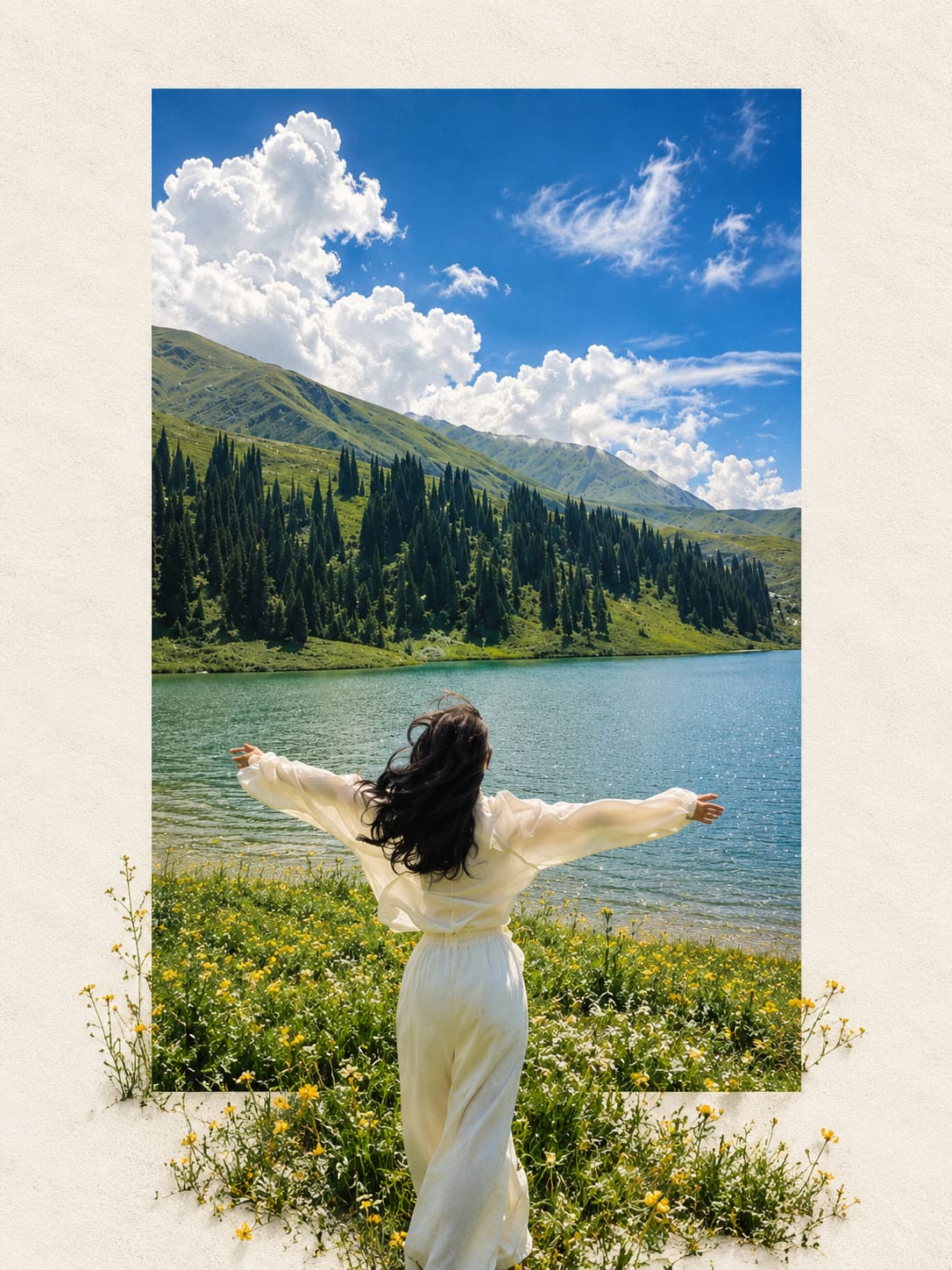
Transform the uploaded photograph into a premium minimalist editorial collage inspired by luxury travel magazines, contemporary fashion editorials, and artistic outdoor photography FORMAT & COMPOSITION: Create a strict 3:4 vertical canvas. Use a warm ivory/off-white background with subtle paper texture and generous negative space Place a large, clean-edged vertical rectangular crop of the original
Place this person in the second photo in a realistic manner and adjust them to match the second photo; do not change anything else. Keep the background exactly as it is-do not alter it at all-and do not change the face. Enhance the image to 8K quality and set the aspect ratio to 3:4. And Backgroud ke accoding person size adjust
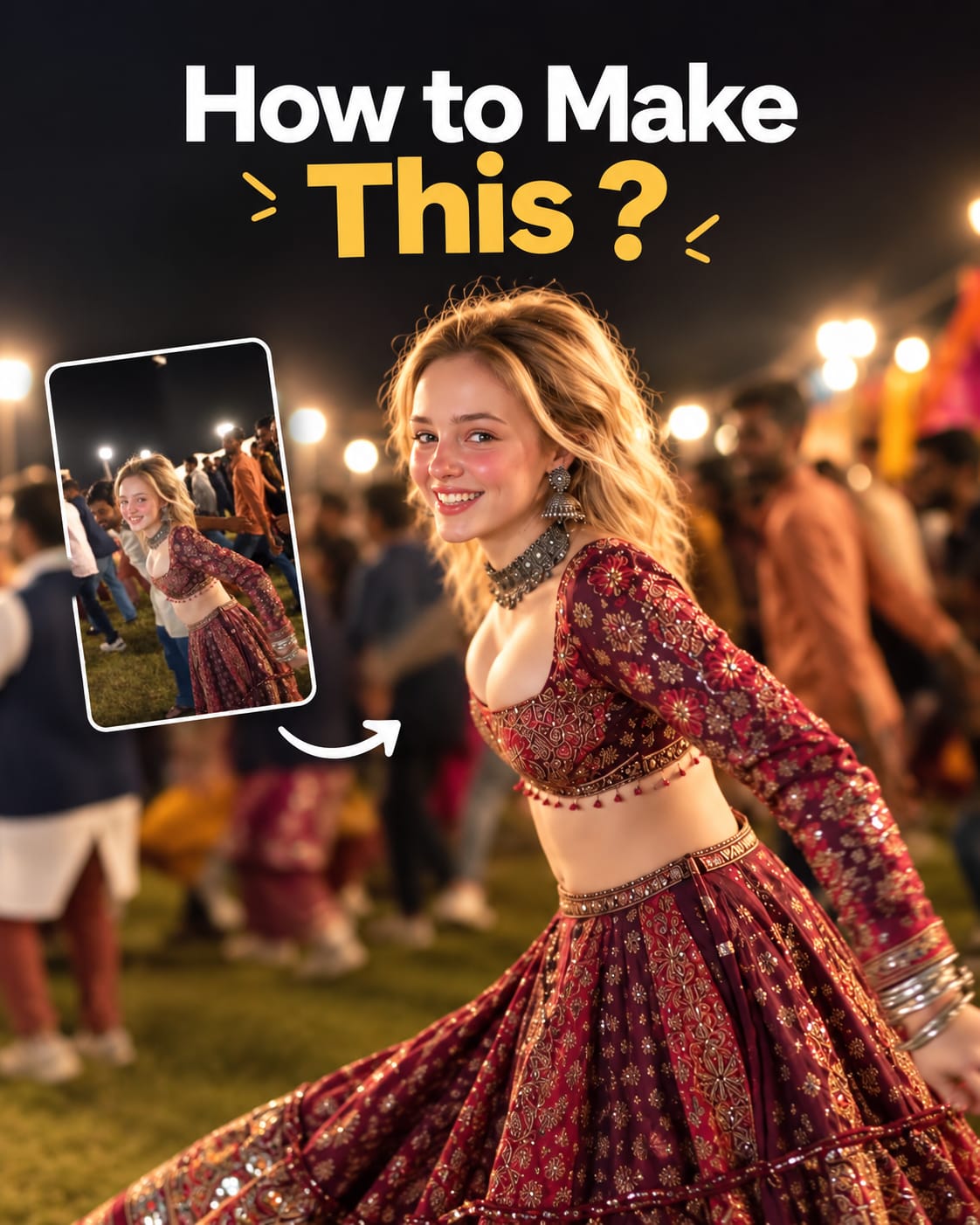
Create a cinematic 4K, highly detailed, photorealistic video by transferring the EXACT dance movements, body motion, performance, timing, expressions, and camera movements from the REFERENCE VIDEO onto the person shown in the TARGET IMAGE. Completely replace the original main dancer with the person from the TARGET IMAGE. Preserve the target person's exact facial identity, facial features, skin ton
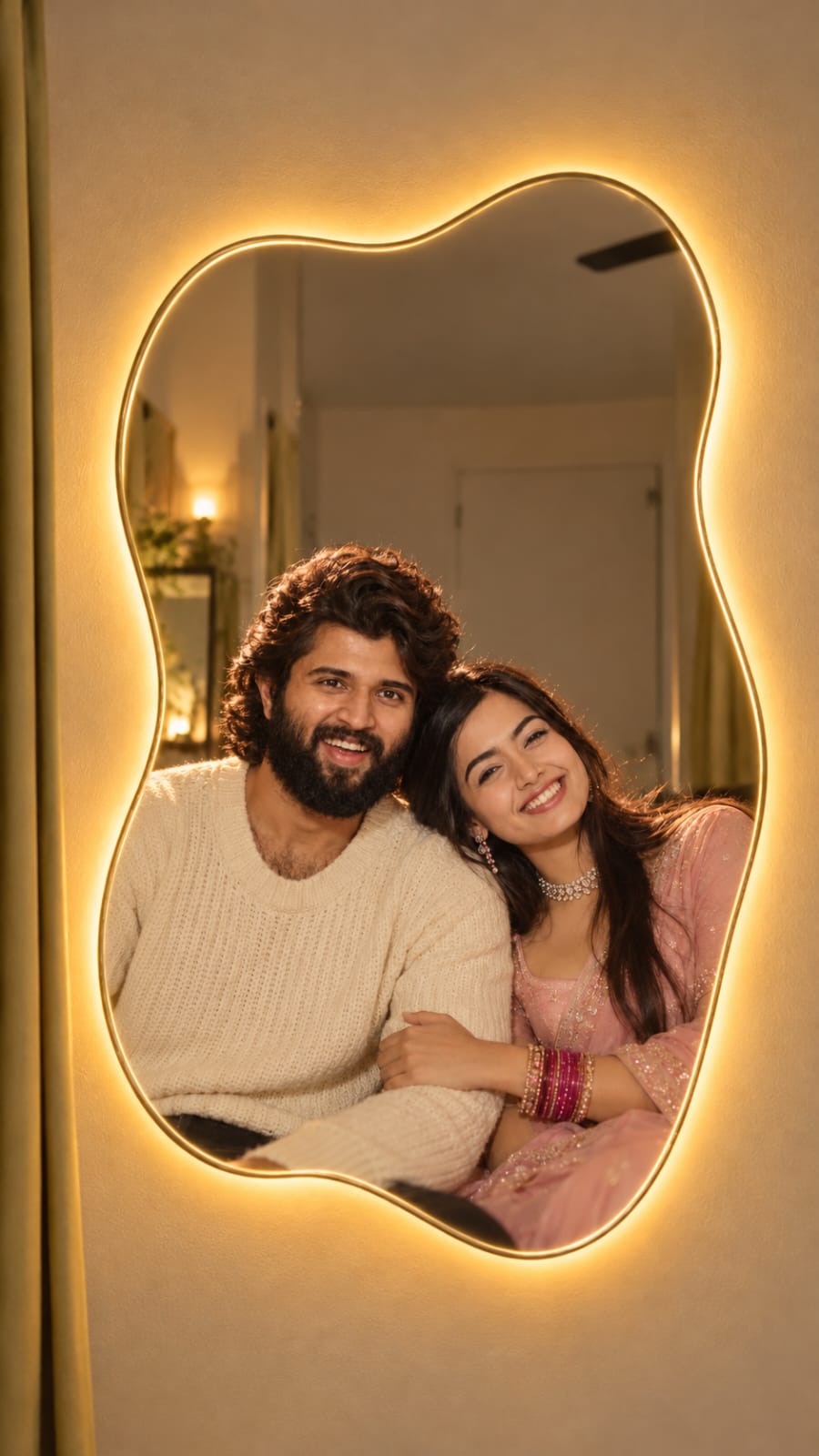
Transform the uploaded mirror selfie into a luxury LED Mirror portrait. Replace the existing mitor frame with an elegant irregular organic shape mirror 1,832 featuring a soft warm golden LED Backlight glow around entire edge .keep the subject same
Create a **10-second photorealistic image-to-video recreation of the uploaded reference video**. ### REFERENCE PRIORITY — CRITICAL Use the uploaded references as follows: **REFERENCE IMAGE 1 — MY PHOTO** Use this as the ONLY identity reference for the main person. Preserve my exact face, facial proportions, eyes, eyebrows, nose, lips, jawline, skin tone, hairstyle and overall identity throughout t
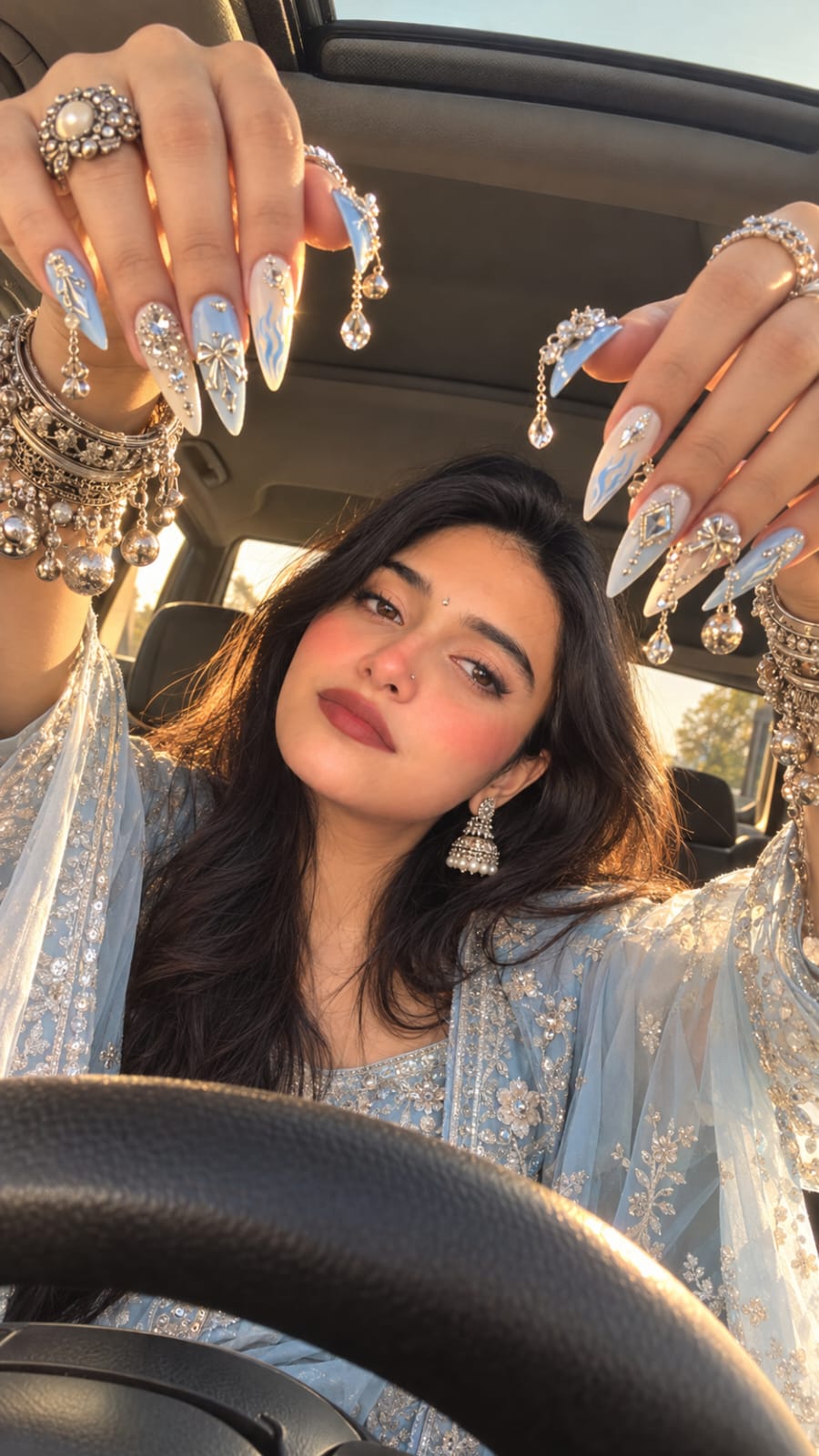
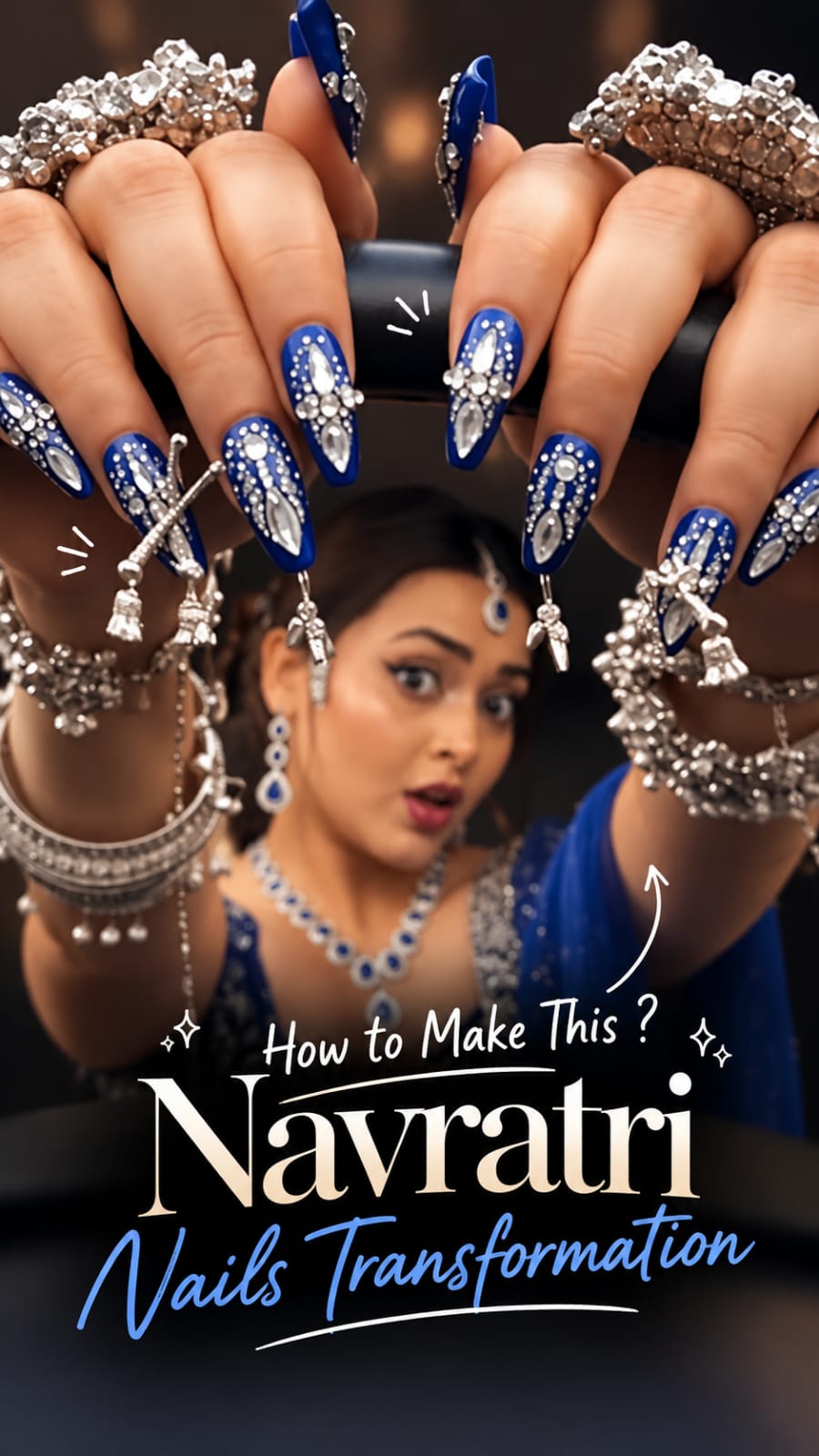
MASTER PROMPT — Ultra-Realistic Bridal Nail Art Car Selfie (9:16) Use the uploaded selfie as the STRICT FACIAL IDENTITY REFERENCE. Preserve the person's exact facial features, natural skin tone, eyes, nose, lips, face shape, age, and realistic skin texture. Do not beautify, reshape, or alter the facial identity. REFERENCE COMPOSITION: Create an ultra-realistic golden-hour photograph of a beautiful
Use the reference video as the exact blueprint. Recreate the SAME actions, hand movements, facial expressions, camera movement, timing, framing and transition — do not invent or change anything. Start with the first reference image as the opening look, then transition into the second reference image at the EXACT same moment and using the EXACT same transition style as the reference video. In the s
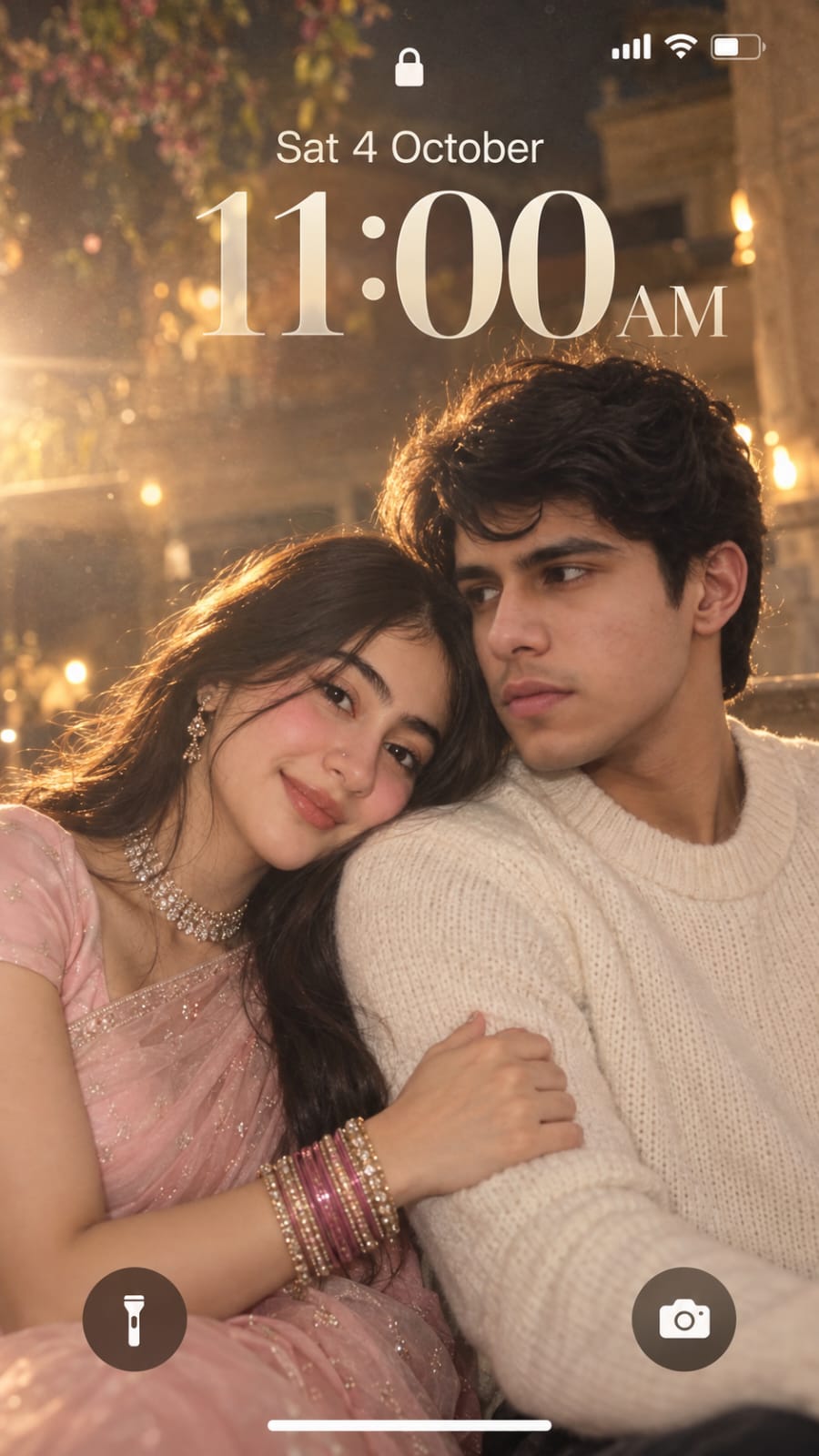
Create a dreamy, ethereal iPhone lock screen screenshot featuring an extreme close-up portrait of a young couple. Preserve the facial identity and natural facial features of both people from the uploaded reference photos. The man and woman are sitting very close together in a soft romantic pose. The woman gently rests her head on the man’s shoulder, lightly holding his arm, while both have subtle,